RCTab v1.3.2 Section 18 - User Guide v.1.2.2
RCTab v1.3.2 Section 18 - User Guide v.1.2.2 document is solely for use in the State of California. This document can be expanded or updated as is necessary or required. Where relevant, this document refers to specific sections and requirements of the California Voting System Standards. Any recommendations listed in this document should not supersede user jurisdiction procedures or other controlling governance entities.
Users should ensure instructions below have been followed and completed prior to operating RCTab:
RCTab v1.3.2 Section 05 - Acceptance Test Procedures v.1.2.1
RCTab v1.3.2 Section 16 - System Hardening Procedures - Windows OS v.1.3.0
RCTab v1.3.2 Section 22 - Installation Instructions for Windows OS v.1.3.0
RCTab v1.3.2 Section 23 - HashCode Instructions - Windows OS v.1.2.1
RCTab v1.3.2 Section 25 - Configuration File Parameters v.1.1.1
Any interaction with RCTab, including producing configuration files, running tabulations, hashing results files, and transmission of files from RCTab on USB drives should follow transmission procedures required in the jurisdiction, including the use of a team with no less than two trained personnel. This document describes all interfaces and options in the RCTab software.
Launching RCTab
The manufacturer recommends RCTab be installed as part of the pre-election preparation process. In order to determine the appropriate launch procedure for a jurisdiction, users should consider the maximum possible number of votes that could occur in the event all eligible voters presented themselves to vote. Jurisdictions should, as part of their pre-election procedure, launch RCTab according to the relevant launch instructions described below to ensure they launch it in accordance with the below requirements. The manufacturer is available for support with this process. For acceptance testing and L&A procedures to set up and use of RCTab, see:
-
RCTab v1.3.2 Section 05 - Acceptance Test Procedures v.1.2.1
-
RCTab v1.3.2 Section 11 - L&A Testing v.1.3.2
Contests with fewer than 1,000,000 votes
To Launch:
-
Navigate to the rcv folder created when you unzipped RCTab.
-
Open the bin folder
-
Double-click the rcv.bat file
- If a Window’s security prompt appears, select “More Info” and then click “Run anyway.”
Contest with more than 1,000,000 votes
-
Open a Command Prompt by navigating to the start menu and typing in Command Prompt.
-
Press enter to launch Command Prompt.
-
Change the current directory to the rcv folder created when you unzipped RCTab.
-
First, type in cd (note there should be a space after cd).
-
Using File Explorer navigate to the folder where RCTab is installed.
-
Double click on the rctab_v1.3.0_windows folder
-
Click and drag the rcv folder over to the command prompt window
-
Your command prompt will now read something like:
- cd C:\Users\user\RCTab\rctab_v1.3.0_windows\rcv
-
Press enter
-
Launch the tabulator by entering the following command:
- .\bin\java -mx30G -p .\app -m network.brightspots.rcv/network.brightspots.rcv.Main .
Prepping CVRs for use with RCTab Software
All exports of CVR records for use with RCTab and migration of CVR records for use with RCTab should follow CVR procedures required by the jurisdiction. Users must keep track of the path to each file that is needed to tabulate the RCV contests. This will be needed when configuring the RCTab software.
When tabulation begins, RCTab automatically, programmatically verifies the cryptographic signature of all Hart CVRs used as input for contest tabulation. This verification step ensures both the integrity (CVR contents have not been edited) and provenance (CVRs came from the Hart voting system) of the Hart CVRs. RCTab will throw a halting error and tabulation will not begin if cryptographic validation of Hart’s CVR signature is not successful.
Users should confirm that each Hart CVR .xml file used as input for RCTab has a corresponding .sig.xml file. Instructions to enable signed Hart CVRs are available below in the “CVR File Options - Hart” heading.
Setting up a configuration file for RCTab
All settings in the RCTab software are described in technical detail in RCTab v1.3.2 Section 25 - Configuration File Parameters v.1.1.1, including brief descriptions of how options impact the operational validity of other options. This document will describe how to set up a configuration for a contest using your jurisdiction's ranked choice voting rules. This guide also includes screenshots of the interfaces described. The values a user inputs into any of these fields depend upon the relevant laws and regulations in place in their jurisdiction, as well as the voting system vendor used to produce cast-vote records for their elections. Users must understand the requirements of their laws, regulations, and vendor CVR data in order to fill out these fields accurately for their needs.
RCTab is organized into tabs: the Contest Info Tab, the CVR Files Tab, the Candidates Tab, the Winning Rules Tab, the Voter Error Rules Tab, and the Output Tab. These tabs each include a set of fields that users fill out - some fields are always required, some fields are required based on previous input, and some fields are always optional. This guide will take the user through basic descriptions of each of these tabs and each of these fields. Additional technical information about these fields can be found in RCTab v1.3.2 Section 25 - Configuration File Parameters v.1.1.1. As users navigate through each tab they are building a configuration .json file which must be saved when complete. If RCTab is closed and the configuration is not saved, no information will be stored. The next time RCTab is opened all fields will be blank. Once a configuration is saved, it can be used by RCTab to process RCV election results according to the rules laid out in that configuration, provided all rules necessary are filled out.
Each individual contest run through RCTab requires its own configuration with contest-specific information such as the contest name and candidate names. This guide will run through setting up the winning rules and voter error rules requirements that will apply in your election and will discuss procedures for how to properly fill out other fields in the software. Operation of RCTab must be conducted by a team of no less than two trained personnel. Note: Including a % symbol anywhere in a configuration file results in a crash of the software. Do not use % symbols in any portion of a configuration file, including settings such as file paths and candidate names.
The following guide describes how to operate RCTab. See also RCTab v1.3.2 Section 11 - L&A Testing v.1.3.2 document for additional detail on system operations.
Contest Info Tab
Below is what the contest info tab looks like when a user first navigates to it. This is also the first screen a user will see upon successfully launching RCTab. Contest info fields are in the middle of the screen. The black box at the bottom of the screen is called the operation log box. It sends the user messages about the tabulation process, any errors encountered in using a configuration file, any errors in tabulation, and other software errors. Information in this panel is saved to the rcv_0.log file. Users cannot turn this feature off while using the RCTab software. The panel on the right side of the document is the “Hints'' tab which includes any interaction with RCTab, including producing configuration files, running tabulations, hashing results files, and transmission of files from RCTab on USB drives should follow transmission procedures required in the jurisdiction, including the use of a team with no less than two trained personnel.
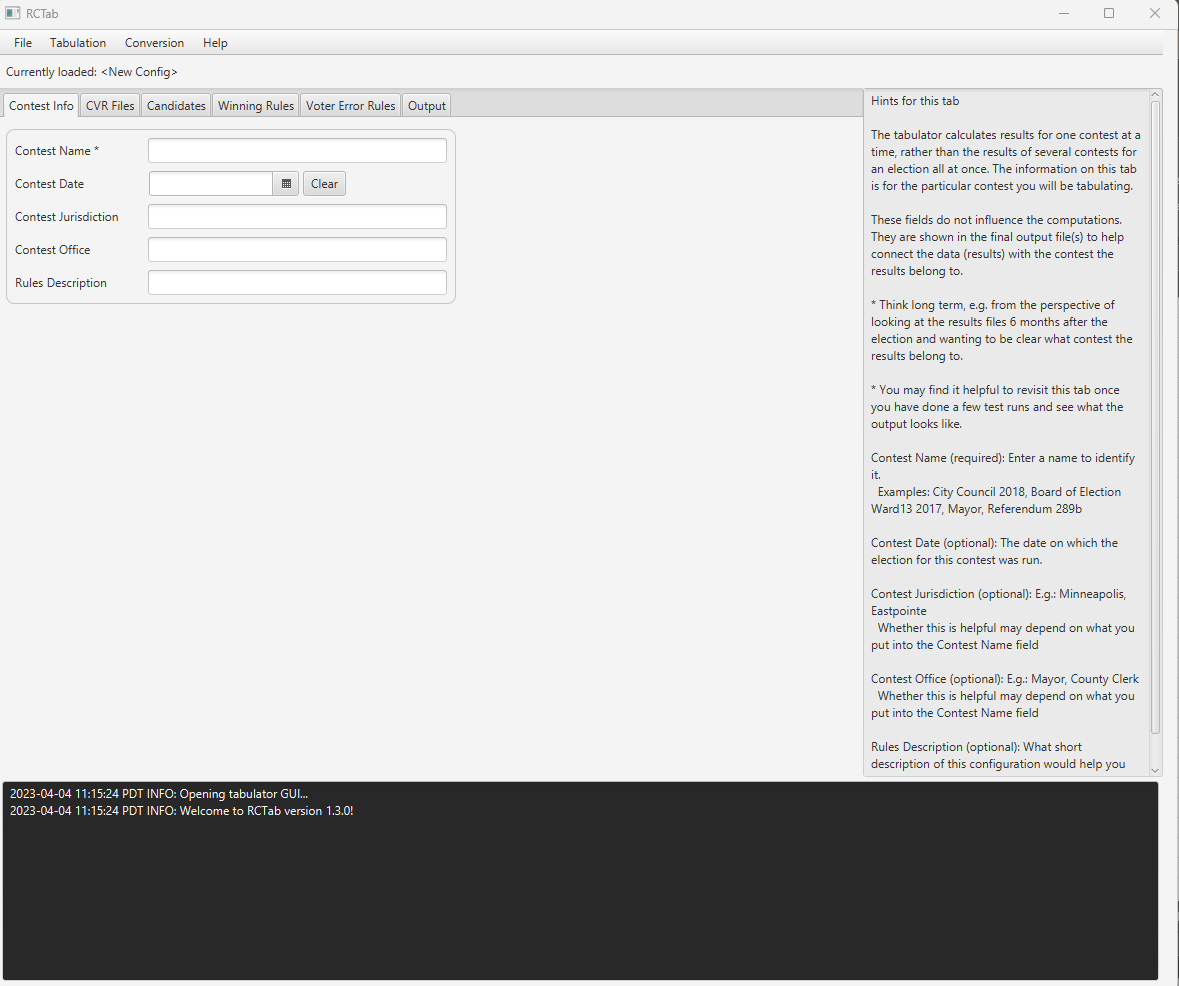
These settings appear on the “Contest Info” tab in RCTab.
-
Contest Name
-
Contest Date
-
Contest Jurisdiction
-
Contest Office
-
Rules Description
The tabulator calculates results for one contest at a time, rather than the results of several contests for an election all at once. The information on this tab is for the particular contest you will be tabulating.
These fields do not influence the computations. Contest Name, Contest Date, Contest Jurisdiction, and Contest Office are shown in the final output file(s) to help connect the data (results) with the contest the results belong to.
-
Think long term, e.g. from the perspective of looking at the results files 6 months after the election and wanting to be clear what contest the results belong to.
-
You may find it helpful to revisit this tab once you have done a few test runs and see what the output looks like.
Contest Name (required): Enter a name to identify it.
Examples: City Council 2018, Board of Election Ward 13 2017, Mayor, Referendum 289b
Contest Date (optional): The date on which the election for this contest was run.
-
Clear permits user to clear this field
-
The calendar button allows a user to navigate through a calendar to select the date of the contest
Contest Jurisdiction (optional): E.g.: Minneapolis, Eastpointe
Whether this is helpful may depend on what you put into the Contest Name field
Contest Office (optional): E.g.: Mayor, County Clerk
Whether this is helpful may depend on what you put into the Contest Name field
Rules Description (optional): What short description of this configuration would help you remember in, say, six months what election this specific rule configuration is for? This option’s use impacts no other options. It is included in configuration .json files and audit .log files.
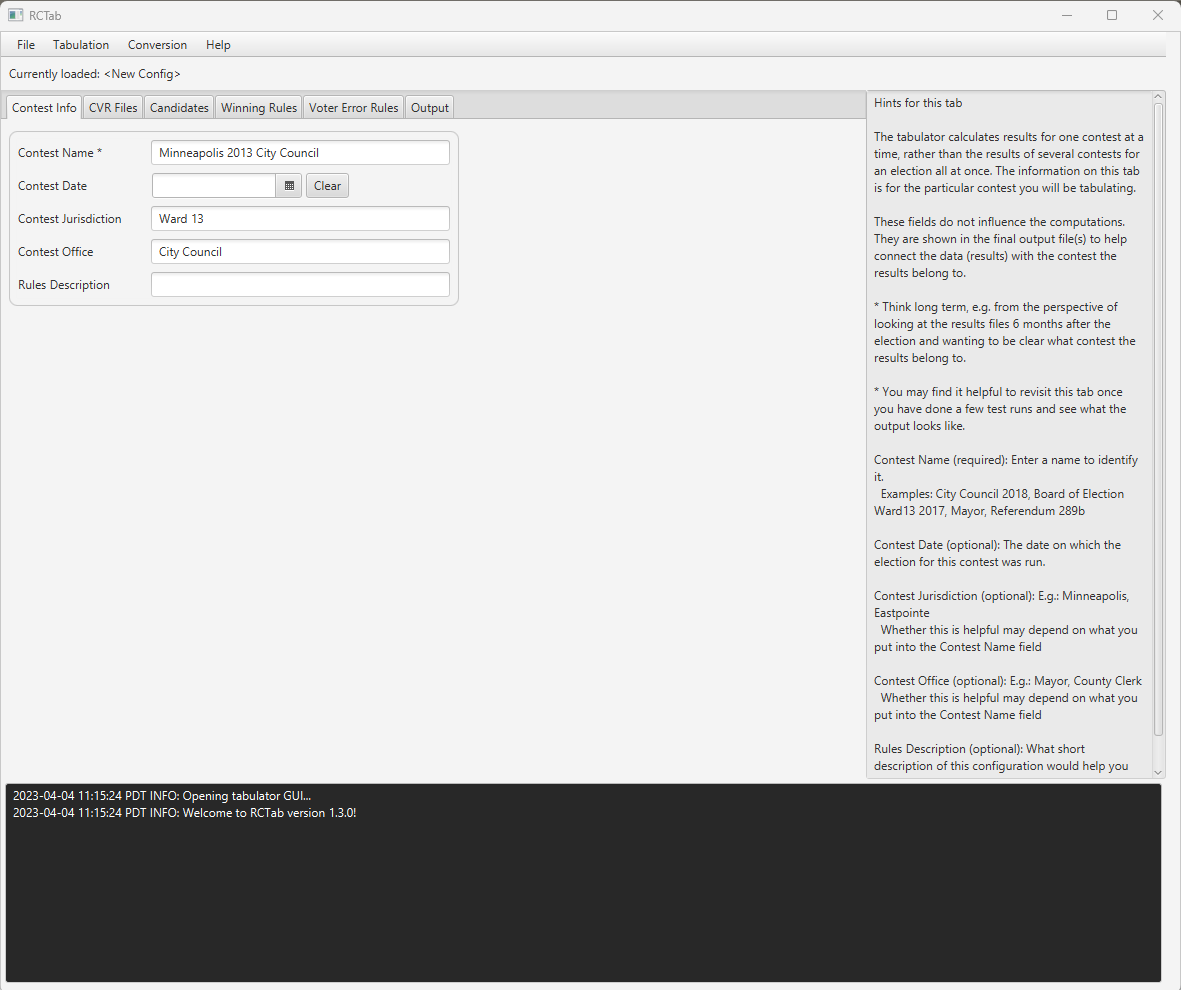
Example Completed Contest Info tab
CVR Files Options
This is what the CVR Files tab looks like when a user first navigates to it.
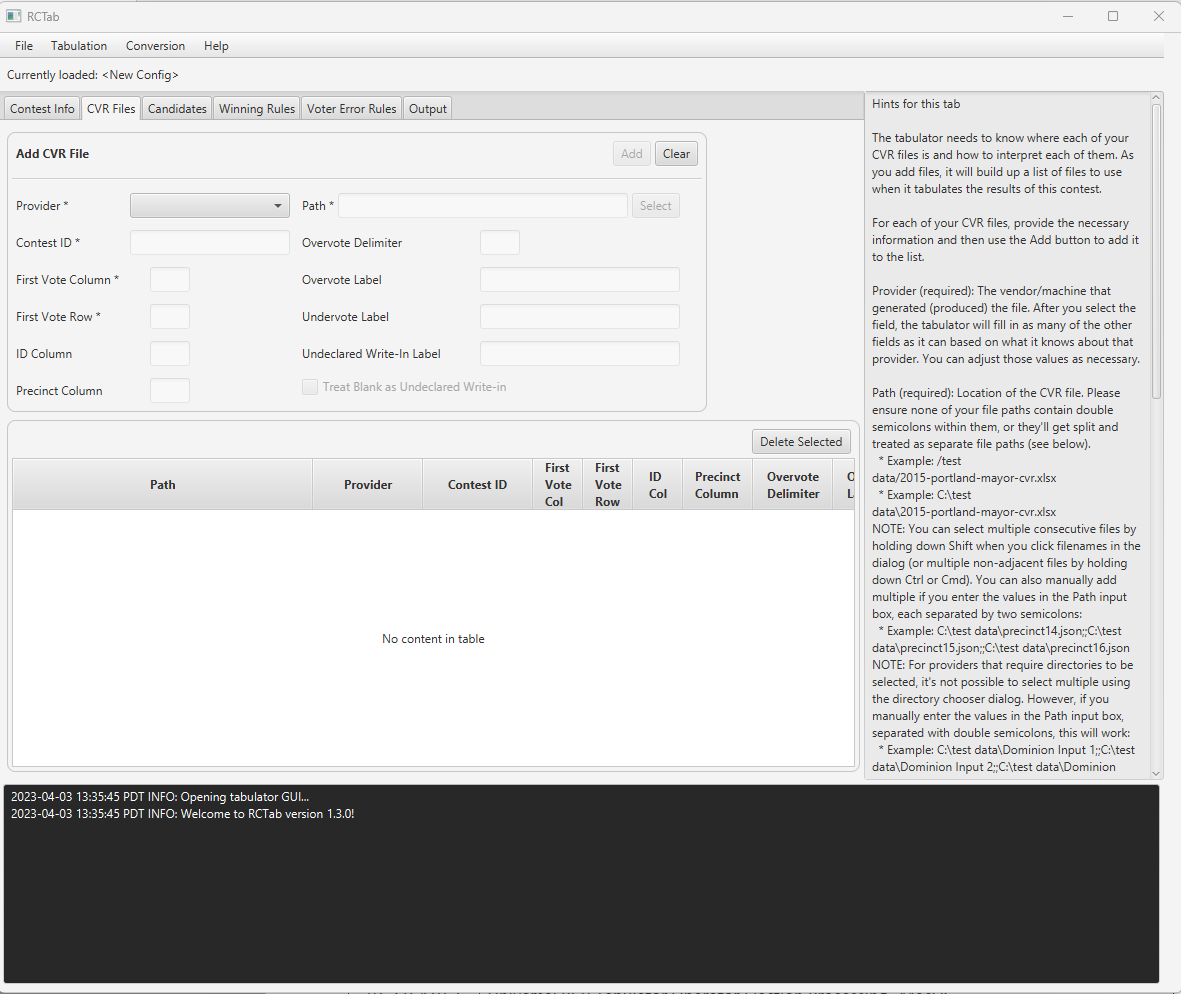
The tabulator needs a configuration file laying out where each of its user’s CVR files for the contest to be tabulated are and how to interpret each of them. Only add files to the configuration that contain data for the contest you are tabulating. CVRs that do not include data for the contest to be tabulated will cause tabulation to fail. Fields used to describe CVRs are on the top half of the tab, while the table on the bottom half of the tab will display each CVR file you have added to your configuration file so far. All information in this tab directs RCTab on where to find files and how to read those files, it does not actually pull in any vote information. Vote information is only used after a user clicks the “Tabulate'' button under “Tabulation” as described later in this guide.
For each of your CVR files, provide the necessary information and then use the Add button to add it to the list.
Provider (required): The vendor/machine that generated (produced) the file. After you select the field, the tabulator will fill in as many of the other fields as it can, based on what it knows about that provider. You can adjust those values as necessary. Different options are active for different providers.
See below for a break down of each field and what is require:
Path (required): Location of the CVR file.
-
Example: /Users/test data/2015-portland-mayor-cvr.xlsx
-
Select allows a user to navigate using Windows Explorer to select a location.
Contest ID: Some CVRs assign an ID label to each contest in the CVR. The tabulator needs to know which contest is being tabulated when multiple contests are included in one CVR. Enter the ID of the contest being tabulated in this field.
First Vote Column: the column where the first vote record is.
First Vote Row: the row where the first vote record is.
ID Column: The column the IDs are in. Not all CVR files contain an ID column.
Precinct Column: The column that contains the precinct.
Overvote Delimiter (optional, but must be blank if "Overvote Label" is provided): If using a CVR in ES&S style, overvotes can be reflected in a CVR by displaying all candidates marked at a ranking. Those candidate names will be differentiated from each other by a delimiter, something like a vertical bar | or a slash /. If your overvotes are delimited like this, enter the delimiter used in this field. Note: that ES&S files may include only the label "overvote" and no additional information, in which case the "Overvote Label" field should be used instead.
Overvote Label (optional, but must be blank if Overvote Rule is): Some CDF and ES&S CVRs use a particular word/phrase to indicate an overvote.
Undervote Label(optional): Some ES&S CVRs use a particular word/phrase to indicate an undervote.
Undeclared Write-in Label (optional): Some CVRs use a particular word/phrase to indicate a write-in.
Treat Blank as Undeclared Write-in (optional for ES&S): When checked, the tabulator will interpret blank cells in this ES&S CVR as votes for undeclared write-ins.
Add: Adds CVR to the configuration file. Impacts no other option. Operation impacted by whether required fields (depending on Provider selected) are filled in.
Clear: Clears all fillable values in CVR Files tab above the CVR Files table.
Delete Selected: Deletes CVR file information listed in the CVR table. Impacted by and impacts no options.
This guide will now briefly show which provider settings permit users to edit which additional settings.
-
Provider options:
-
CDF
-
Clear Ballot
-
Dominion
-
ES&S
-
Hart
-
CDF
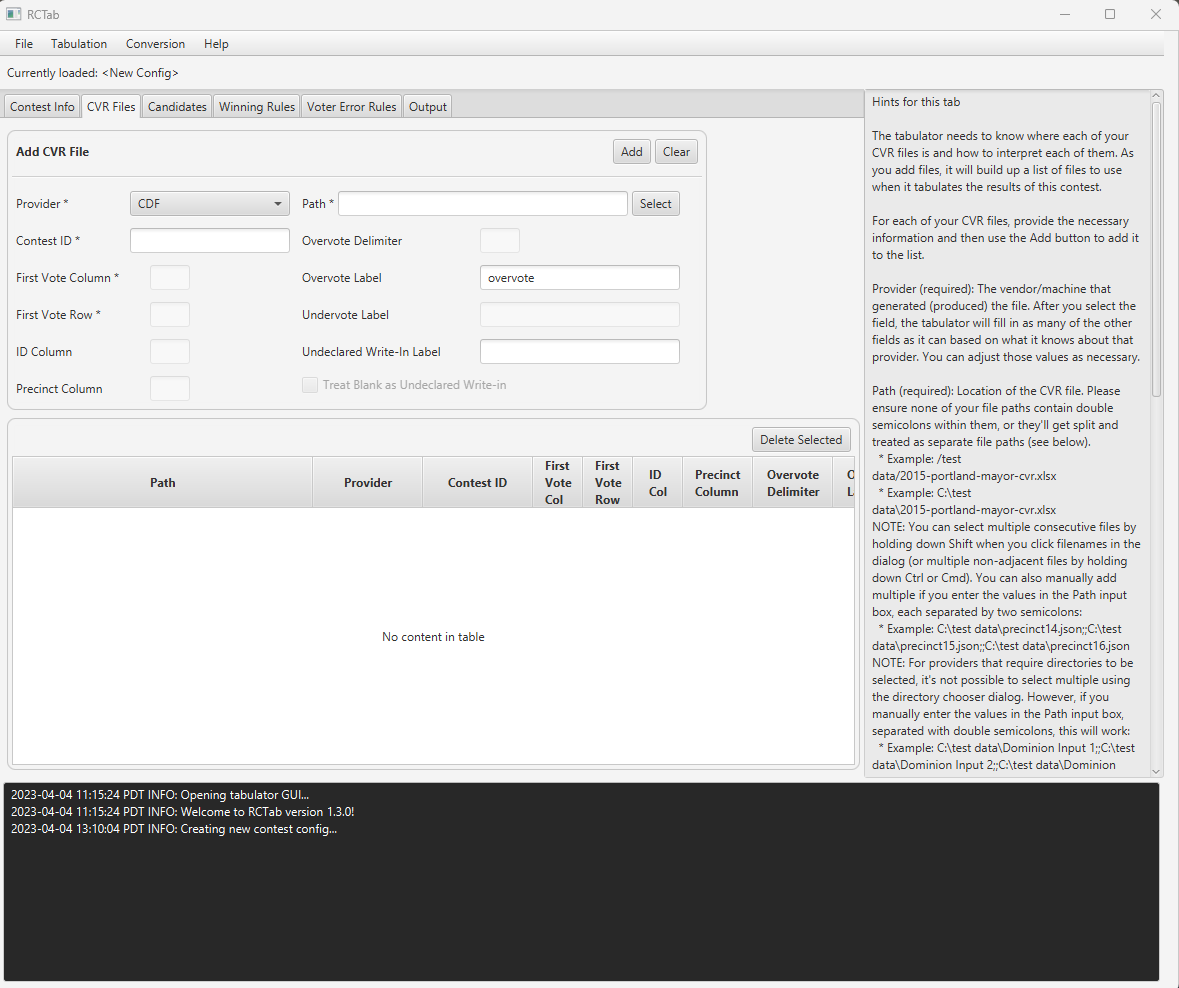
Permits user to edit these options:
-
Path
-
Contest ID
-
Overvote Label (Default value: overvote)
-
Undeclared write-in label
Does not permit user to edit these options:
-
First Vote Column
-
First Vote Row
-
ID Column
-
Precinct Column
-
Overvote Delimiter
-
Undervote Label
-
Treat Blank as Undeclared Write-In
Clear Ballot
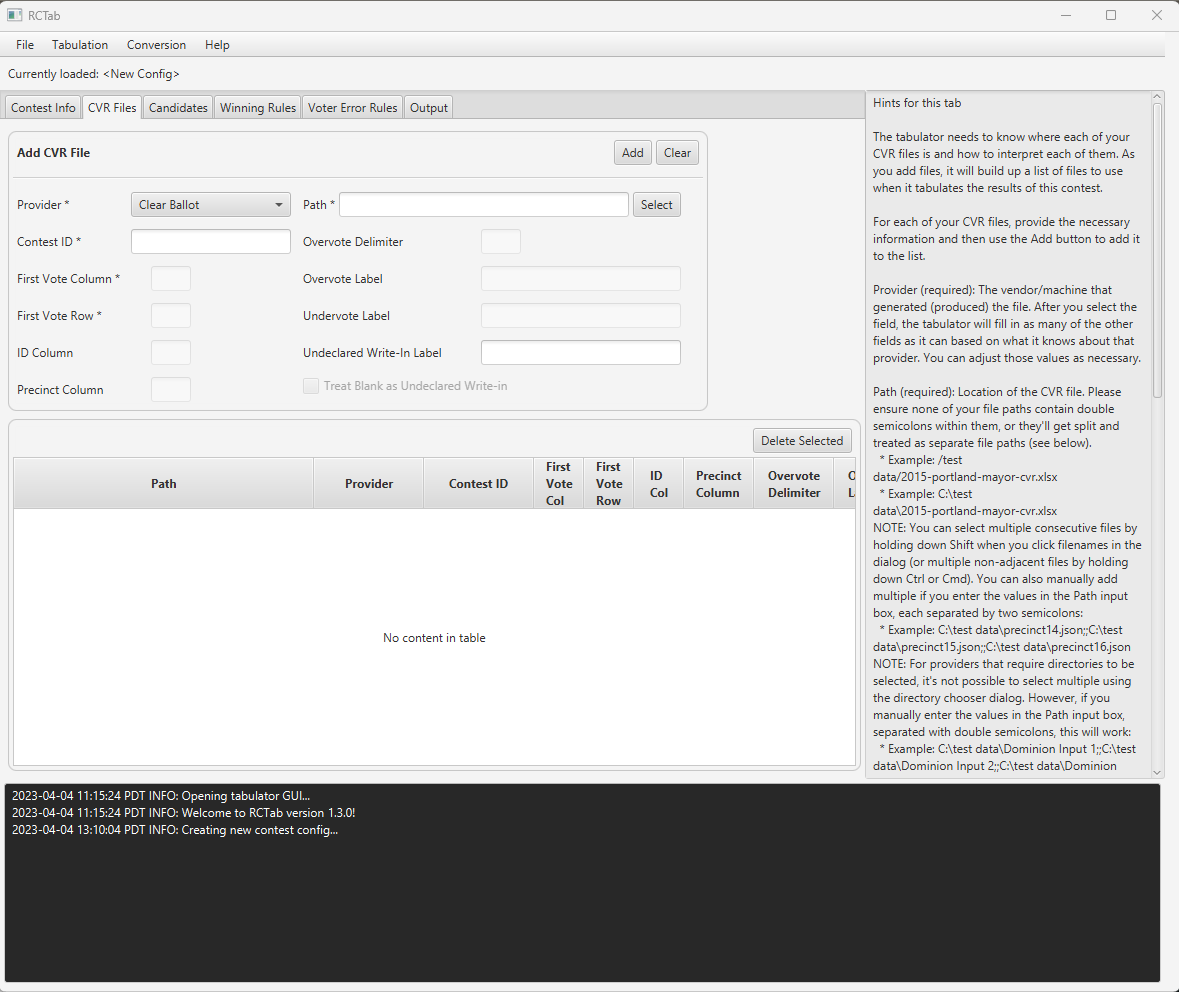
Permits user to edit these options:
-
Path
-
Contest ID
-
Undeclared Write-In Label
Does not permit user to edit these options:
-
First Vote Column
-
First Vote Row
-
ID Column
-
Precinct Column
-
Overvote Delimiter
-
Overvote Label
-
Undervote Label
-
Treat Blank as Undeclared Write-In
Dominion
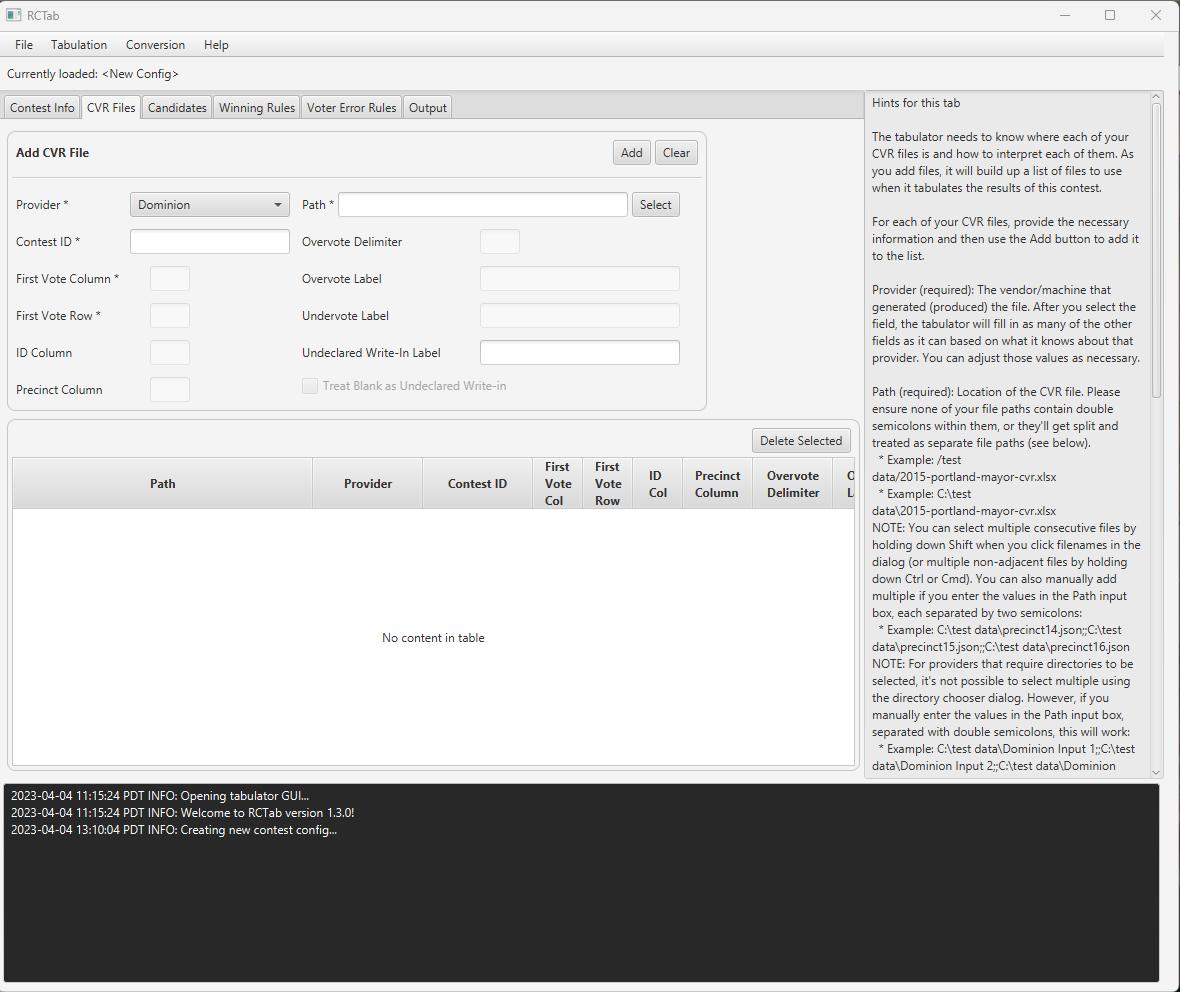
Permits user to edit these options:
-
Path
-
Contest ID
-
Undeclared Write-In Label
Does not permit user to edit these options:
-
First Vote Column
-
First Vote Row
-
ID Column
-
Precinct Column
-
Overvote Delimiter
-
Overvote Label
-
Undervote Label
-
Treat Blank as Undeclared Write-In
ES&S
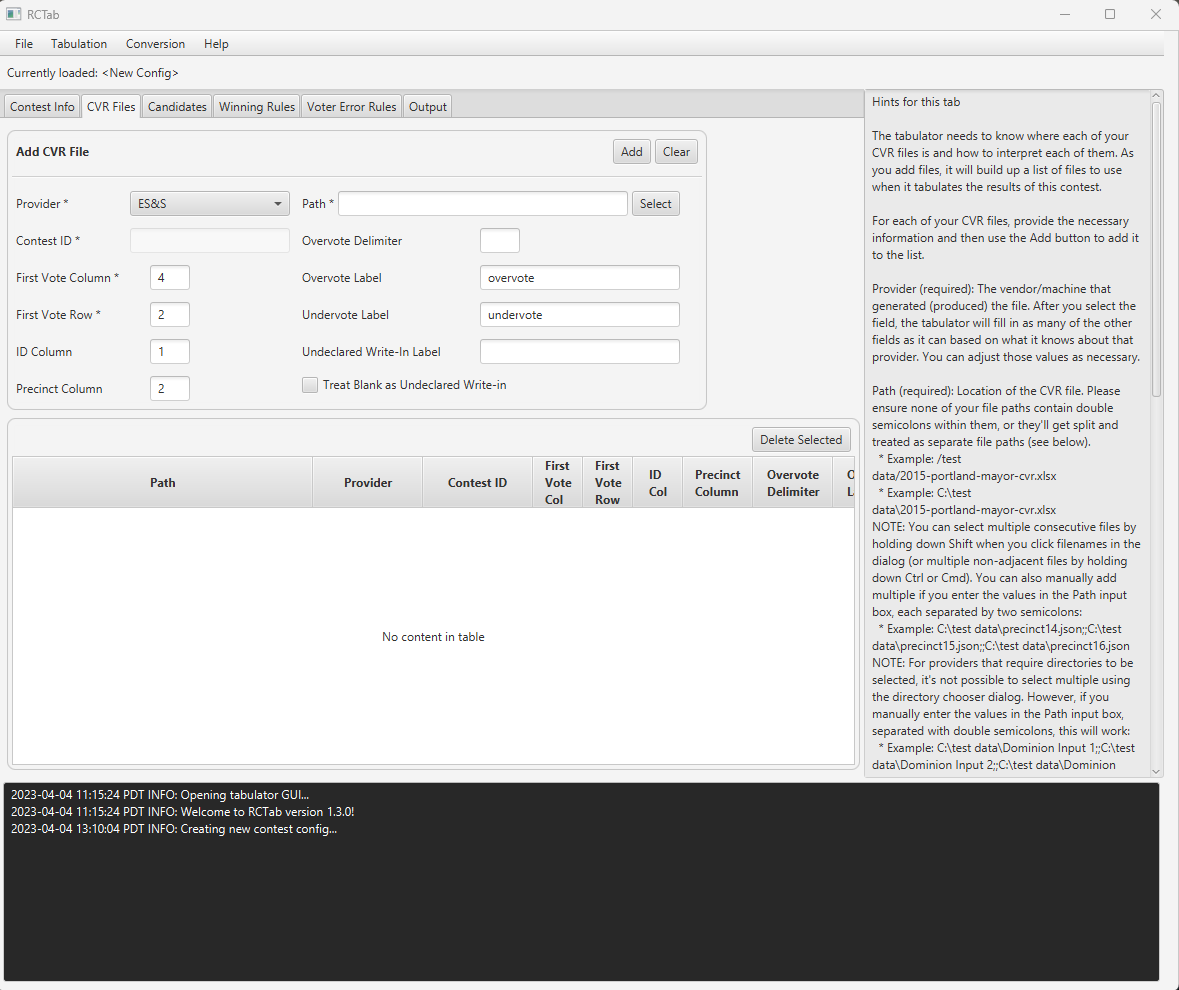
Permits user to edit these options:
-
Path
-
First Vote Column (Default Value: 4)
-
First Vote Row (Default Value: 2)
-
ID Column (Default Value: 1)
-
Precinct Column (Default Value: 2)
-
Overvote Delimiter
-
Overvote Label (Default Value:
overvote)
-
Undervote Label (Default Value: undervote)
-
Undeclared Write-In Label
-
Treat Blank as Undeclared Write-In
Does not permit user to edit this option:
- Contest ID
It is assumed that the ES&S export uses the default settings so below are the ES&S default settings. The user will only need to enter the path, but all other default settings are included. If the default settings are not used in the ES&S export file, the user must determine the values to be used. If defaults are not being used, users should confirm the proper values for First Vote Column, First Vote Row, ID Column, Precinct Column, Overvote Label, Undervote Label, and Undeclared Write-In Label by referencing the CVRs files to be used in the Tabulation.
The First Vote Column location depends on the information users choose to export in their CVR exports from ES&S’s system. ES&S systems can include individual CVR ID information, Precinct information, and ballot style label information in the first three columns of a CVR, as shown in the below screenshot. Column A (aka Column 1) has CVR ID numbers; Column B (Column 2) has Precinct information, Column C (3) has ballot style information, and Column D (4) includes the first ranking in the RCV contest in this CVR. This is the standard CVR layout for ES&S. More information is available from ES&S.
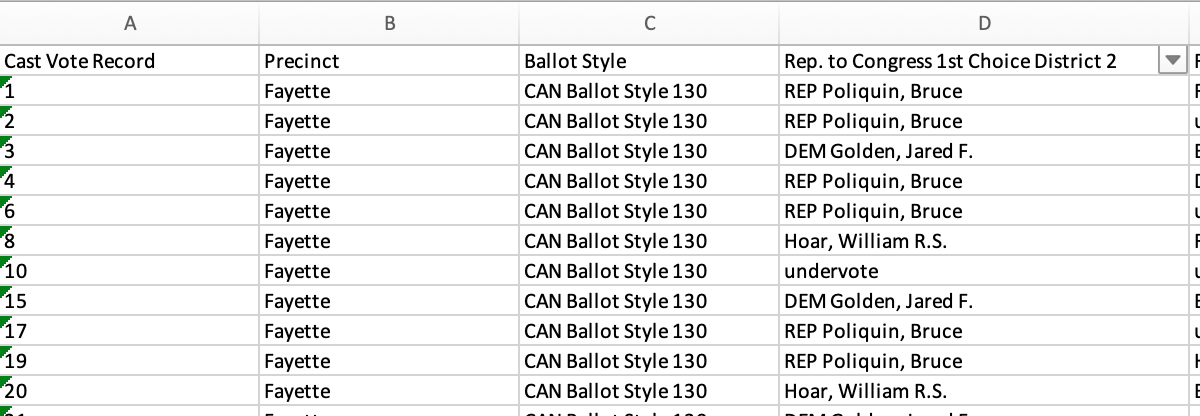
CVR exports from ES&S contain columns for each ranking in an RCV contest. See the above screenshot for an example. This screenshot includes the five rankings voters had in the contest, arranged in sequential order. This CVR export included only data for the one RCV contest to be run. The setting “Maximum Number of Candidates That Can Be Ranked” (covered below in Winning Rules) instructs RCTab how many columns to process when running the round-by-round count. If that setting is set to five and the First Vote Column setting is set to four (Column D), RCTab will process this CVR starting at Column D/4 (column number 4) and continue through columns E/5, F/6, G/7, and H/8 - five columns for the five rankings voters have.
Hart
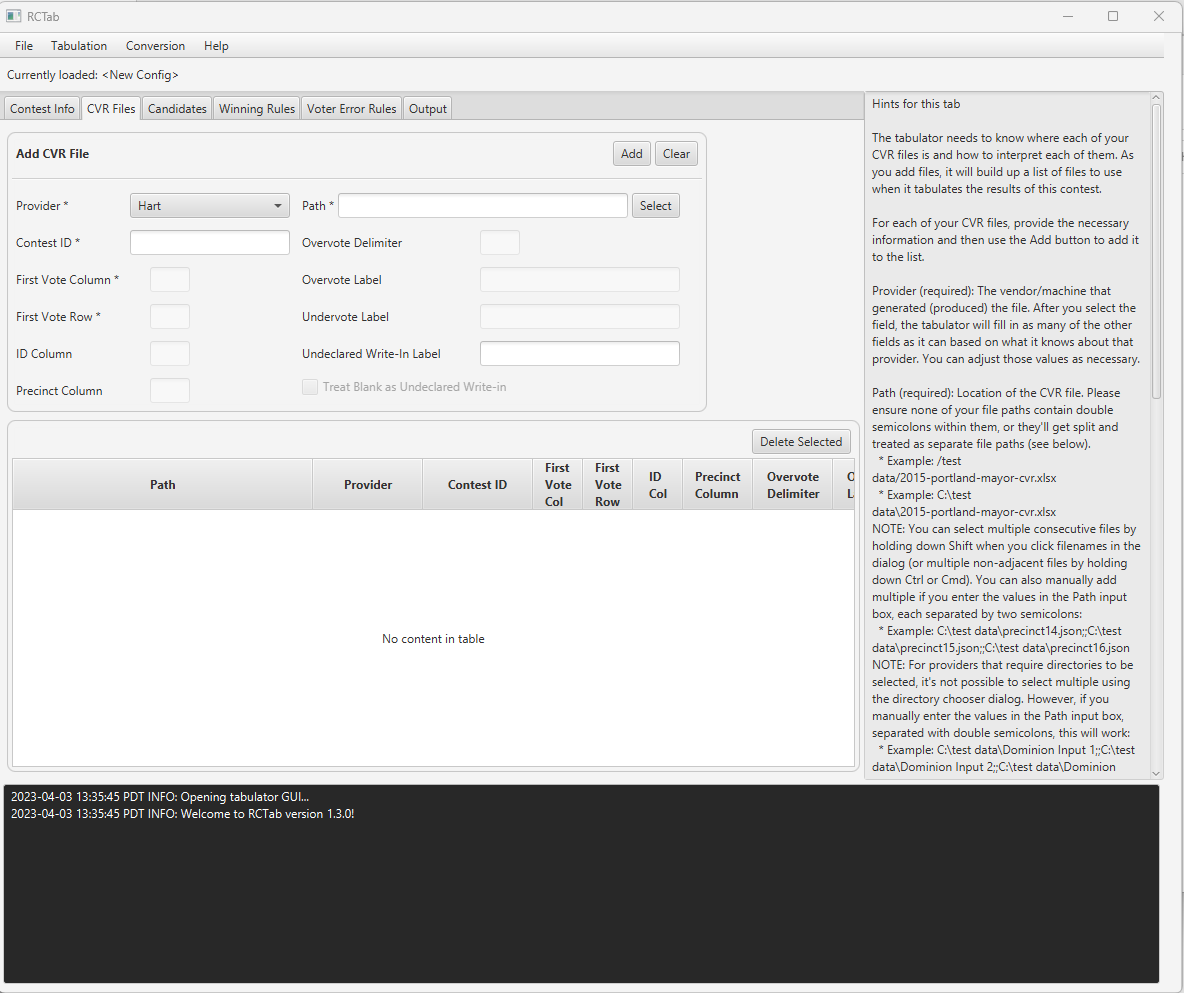
Permits user to edit these options:
-
Path
-
Contest ID
-
Undeclared Write-In Label
Does not permit user to edit these options:
-
First Vote Column
-
First Vote Row
-
ID Column
-
Precinct Column
-
Overvote Delimiter
-
Overvote Label
-
Undervote Label
-
Treat Blank as Undeclared Write-In
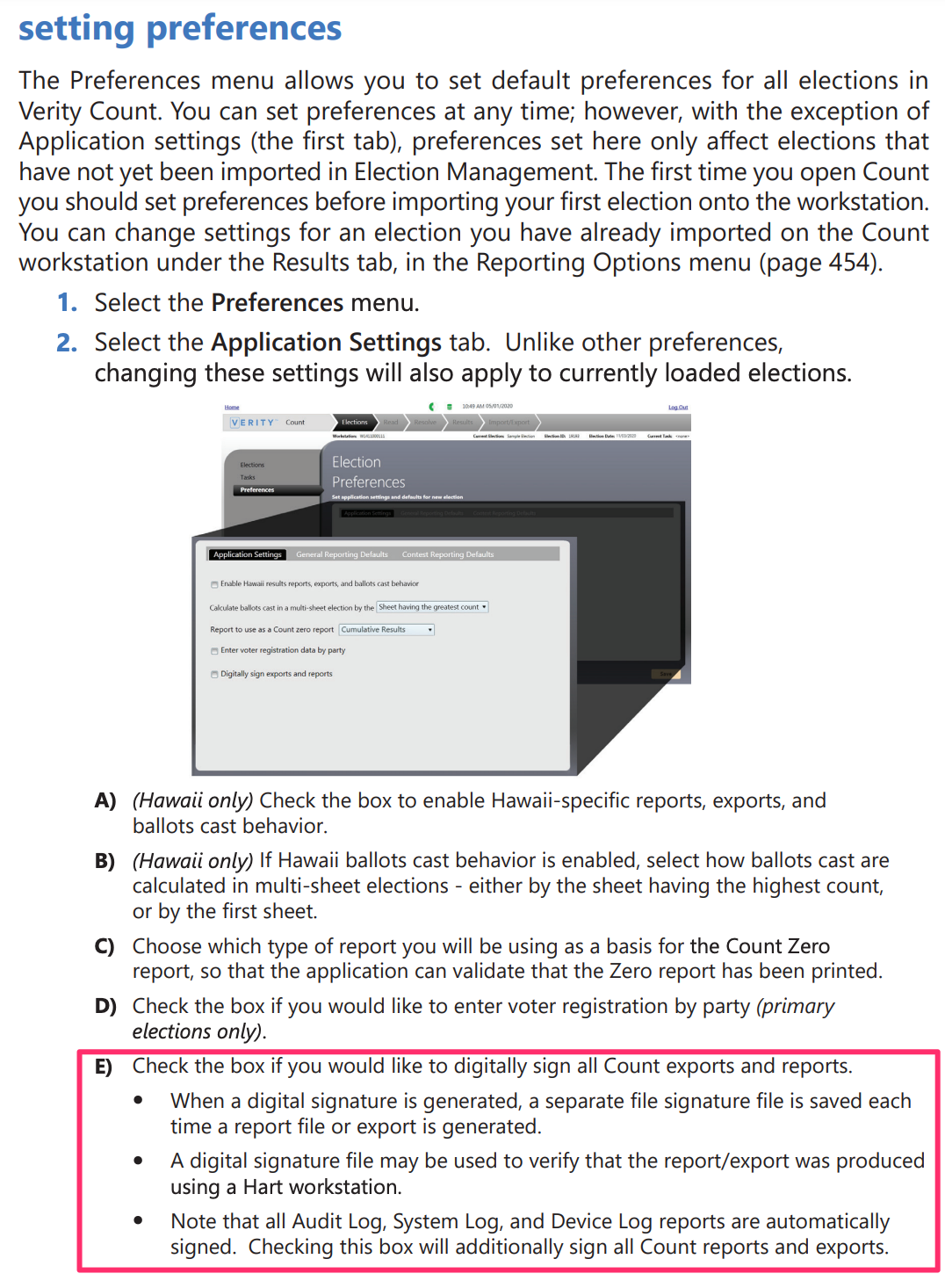
Path: Select the path of the folder that contains signed Hart CVRs. That folder should contain CVR files in .xml format. Each .xml should also have a corresponding [fileName].sig.xml. The [fileName].sig.xml files are used to verify the cryptographic signature of each .xml CVR. Tabuluation will not proceed unless the signature can be verified. Use the Preferences menu in Verity Count to digitally sign CVR exports
Candidates Tab
The candidates tab allows users to put in information about how candidates are referred to in cast-vote record files. These settings impact how CVR files are read. Candidate names entered on this tab will also be used to display candidate names in results files. Below is a screenshot of the Candidates Tab when a user first navigates to it.
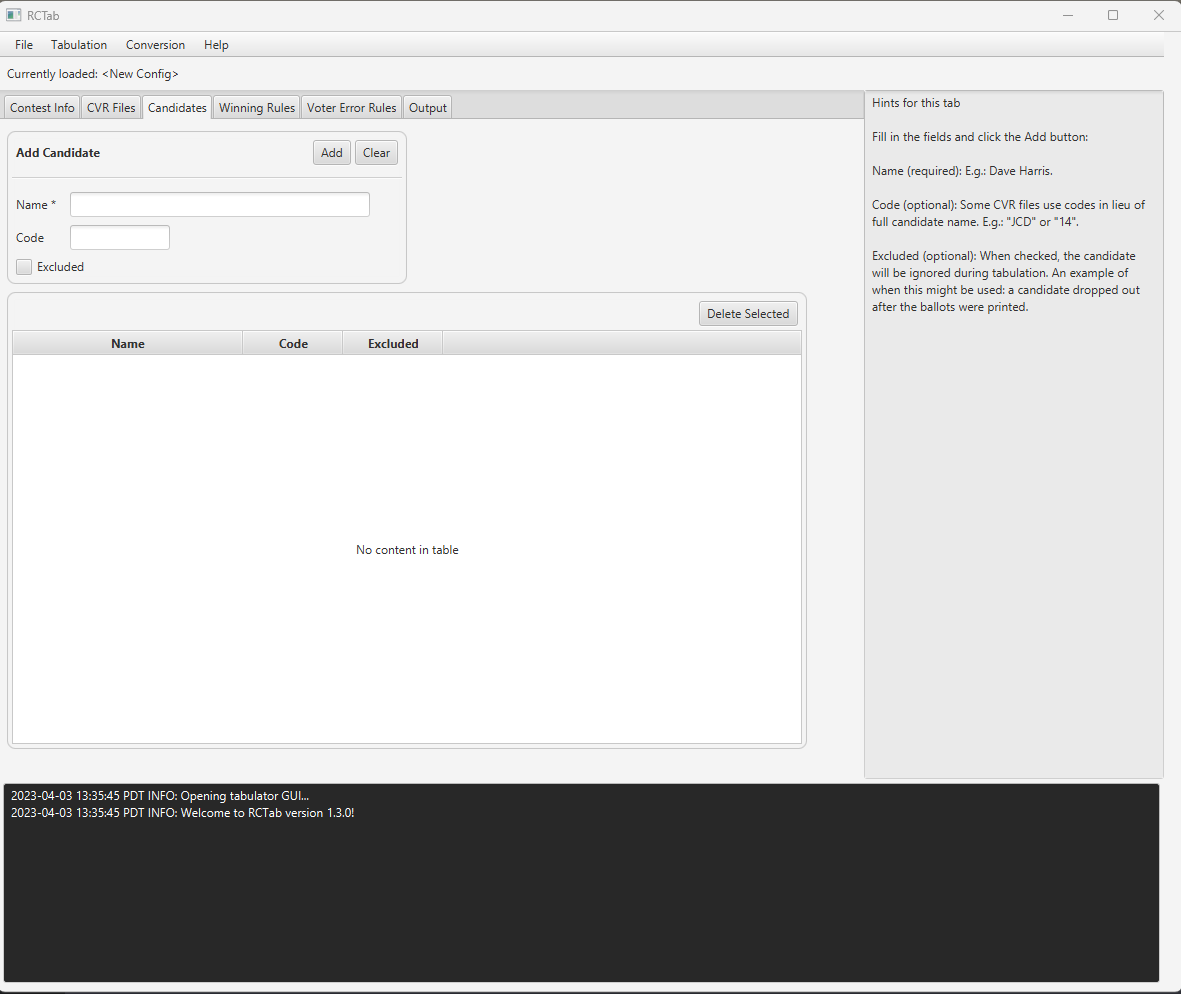
Fill in the fields and click the Add button:
Name (required): E.g.: Dave Harris. This information is used to display candidate names in results files.
Code (optional): Some CVR files use codes in lieu of the full candidate name. E.g.: "JCD" or "14".
Excluded (optional): When checked, the candidate will be ignored during tabulation. An example of when this might be used: a candidate dropped out after the ballots were printed.
Add: Adds Name, code, and/or excluded information to the Candidates Table.
Clear: Clears any information in Name, Code, and Excluded.
Delete Selected: Deletes selected candidate data from the Candidate Table.
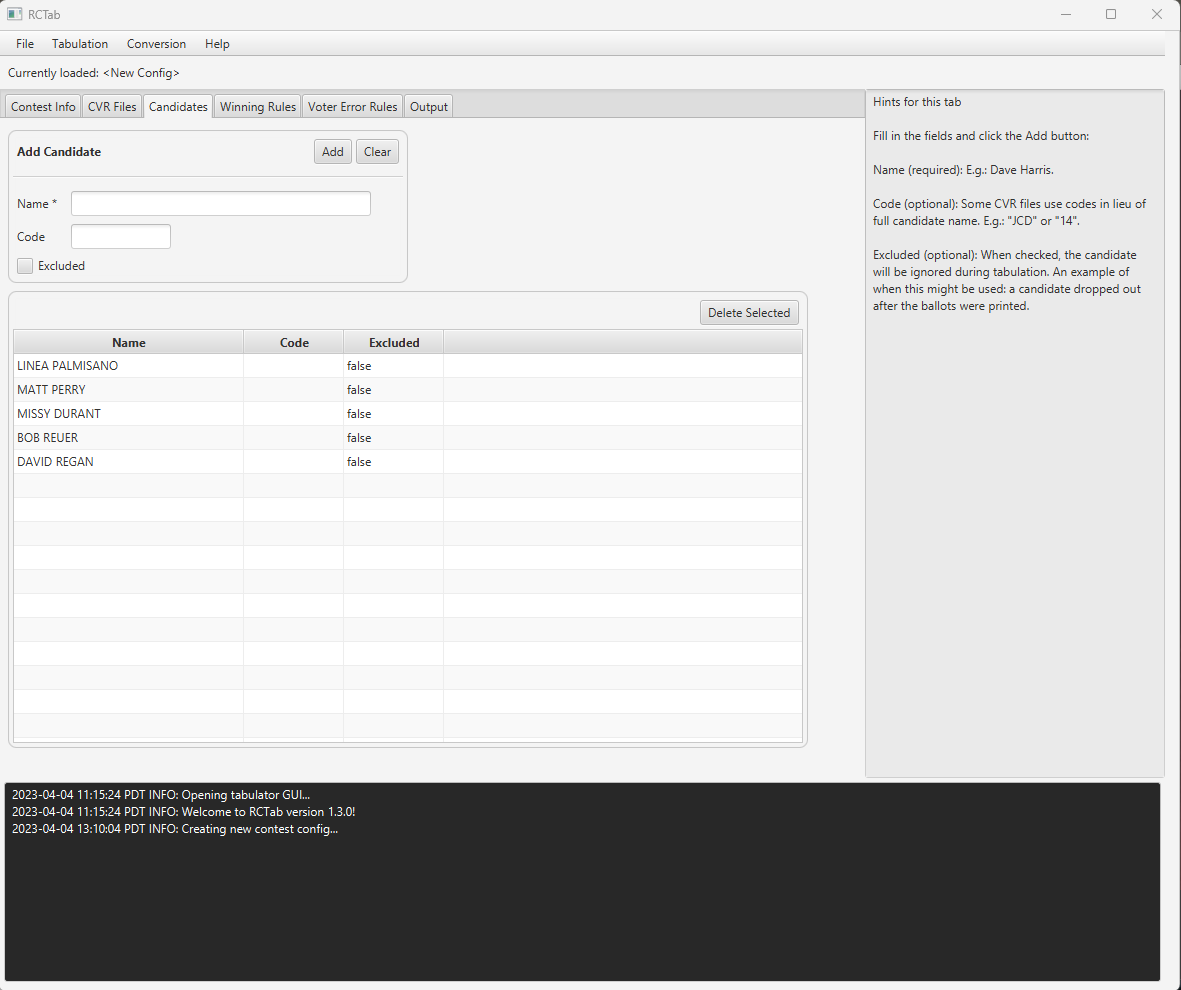
Below is a screenshot of an example of a Candidates Tab while being filled out:
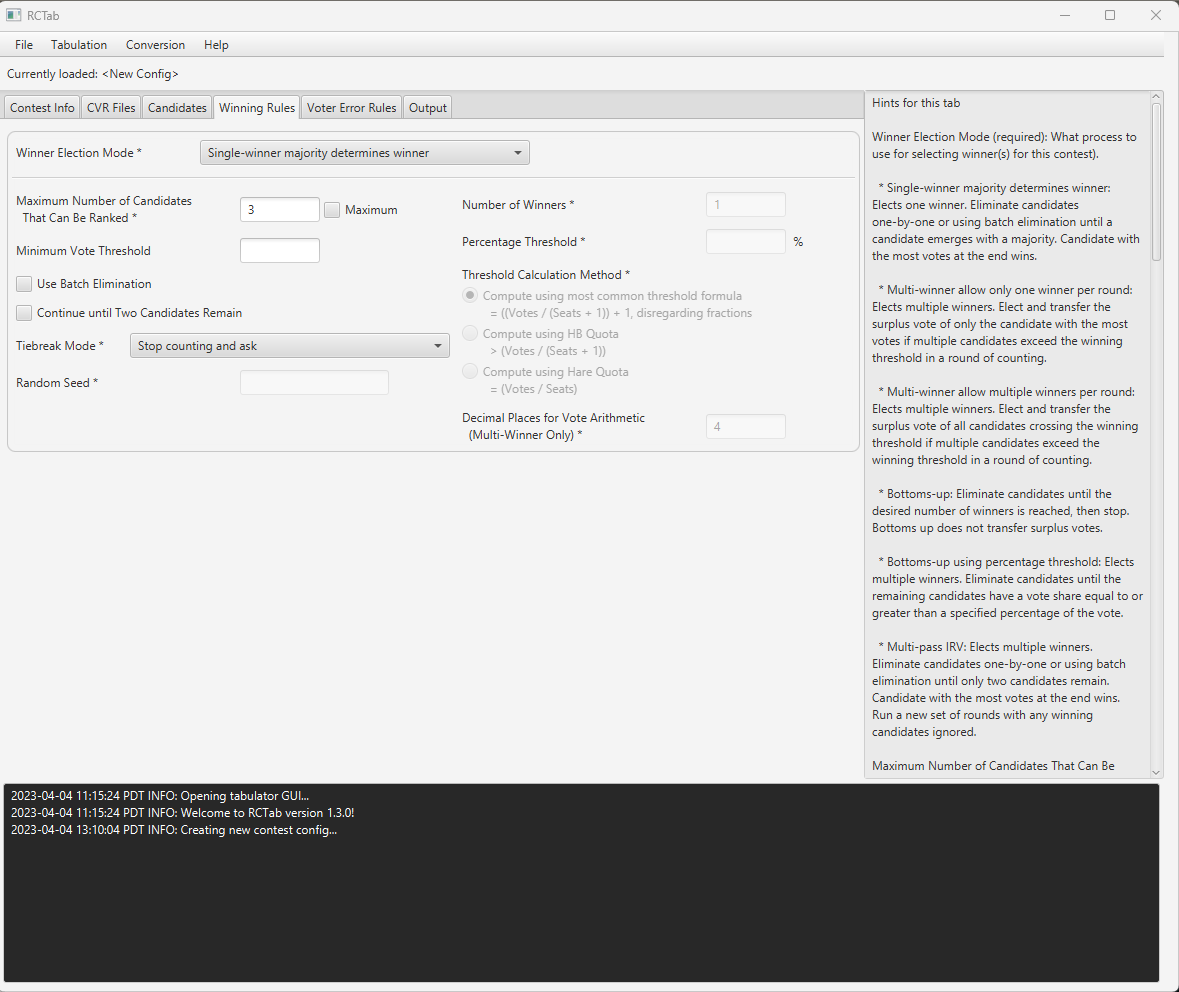
Winning Rules Options
Winning Rules options tell RCTab what kind of ranked choice voting election to run and how to handle details required for each kind of ranked choice voting RCTab can run.
This is a screenshot of what winning rules look like when a user first navigates to them.
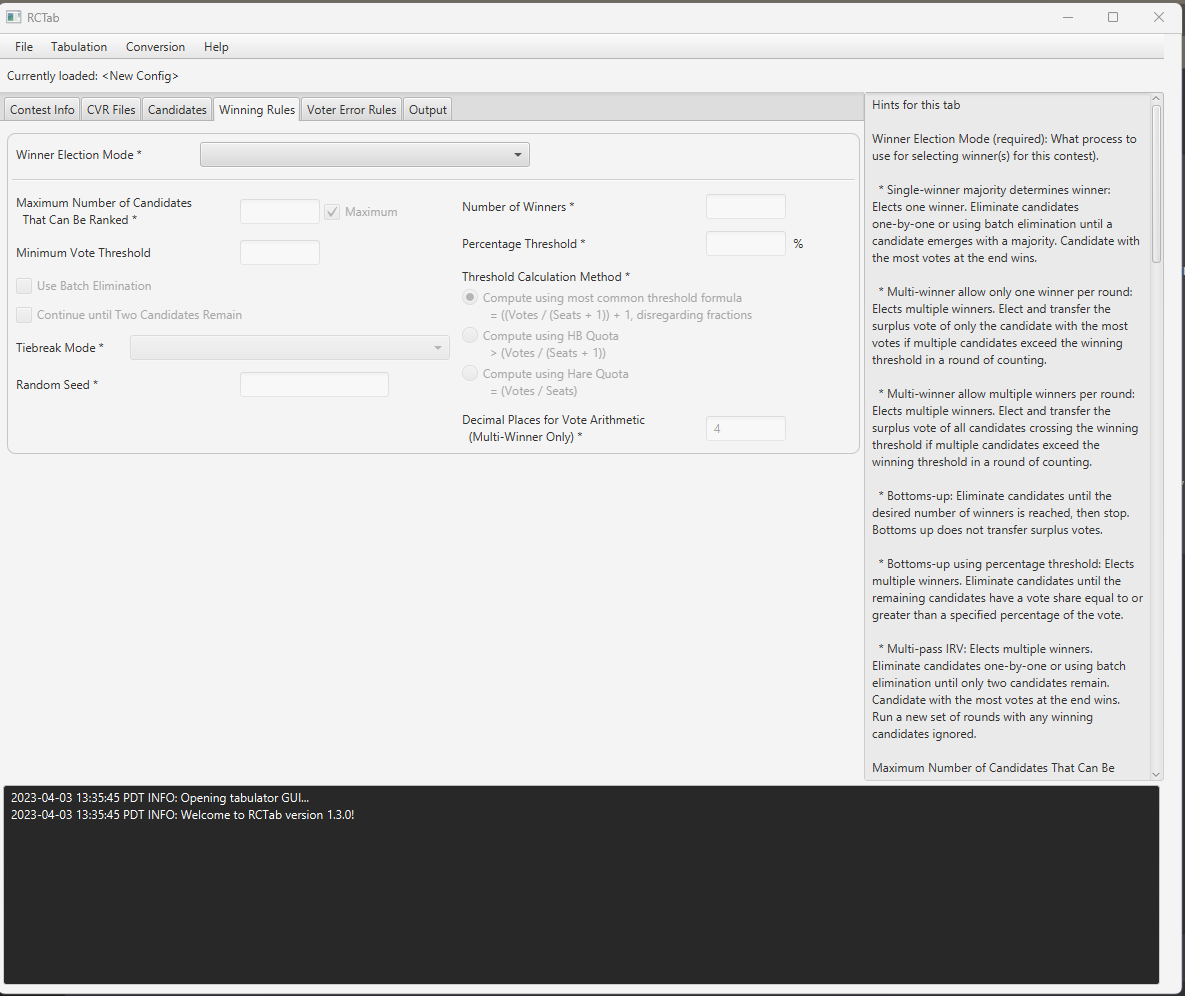
There are two main sets of options on the Winning Rules tab: Winner Election Mode options and Tiebreak Mode options.
Winner election mode options have many options that interact in many different ways. Which options are required and which options users can edit ultimately depend on the winner election mode option itself. Options are described below. Screenshots are then provided of each interface for each winner election mode.
Winner Election Mode (required): What process to use for selecting winner(s) for this contest.
-
Single-winner majority determines winner: Elects one winner. Eliminate candidates one-by-one or using batch elimination until a candidate emerges with a majority. Candidate with the most votes at the end wins.
-
Multi-winner allows only one winner per round: Elects multiple winners. Elect and transfer the surplus vote of only the candidate with the most votes if multiple candidates exceed the winning threshold in a round of counting.
-
Multi-winner allows multiple winners per round: Elects multiple winners. Elect and transfer the surplus vote of all candidates crossing the winning threshold if multiple candidates exceed the winning threshold in a round of counting.
-
Bottoms-up: Eliminate candidates until the desired number of winners is reached, then stop. Bottoms up does not transfer surplus votes.
-
Bottoms-up using percentage threshold: Elects multiple winners. Eliminate candidates until the remaining candidates have a vote share equal to or greater than a specified percentage of the vote.
-
Multi-pass IRV: Elects multiple winners. Eliminate candidates one-by-one or using batch elimination until only two candidates remain. Candidate with the most votes at the end wins. Run a new set of rounds with any winning candidates ignored.
Maximum Number of Candidates That Can Be Ranked (required): How many rankings each voter has in this contest. This tells RCTab how many rankings to read from each CVR. This option can be filled out in the text box or by selecting a checkbox. Selecting the checkbox disables the text box option and inserts the value “maximum”. The checkbox can be unselectedDefault value: Maximum. Available in all winner election modes.
Minimum Vote Threshold (optional): The number of first-choice votes a candidate must receive in order to remain in the race. Any candidates falling below the minimum vote threshold are eliminated and have their votes transferred. Most jurisdictions do not set a minimum vote threshold. Note that if no candidate exceeds the minimum vote threshold, vote tabulation will silently fail. Be sure not to set a minimum vote threshold beyond the number of votes candidates have. This option can impact how any winner election mode tabulation runs. Its validity is not impacted by any other option. Available in all winner election modes.
Use Batch Elimination (optional): Batch elimination, or simultaneous elimination of all candidates for whom it is mathematically impossible to be elected, eliminates all candidates who cannot receive enough votes to surpass the candidate with the next highest number of votes. Example: in a six candidate contest with 200 votes, Candidate A has 80 votes, Candidate B has 70, and the other four combined have 50. Because those four candidates can never combine their votes to surpass Candidate B, they can be batch eliminated. This option impacts how single-winner majority determines winner tabulation runs. Its validity is impacted by the winner election mode. It will not impact who wins the election. Available only when Winner Election Mode is "Single-winner majority determines winner".
Continue until Two Candidates Remain (optional): Single-winner ranked choice voting elections can stop as soon as a candidate receives a majority of votes, even though 3 or more candidates may still be in the race. Selecting this option will run the round-by-round count until only two candidates remain, regardless of when a candidate wins a majority of votes. It will not impact who wins the election. Available only when Winner Election Mode is "Single-winner majority determines winner".
Number of Winners (required): The number of seats to be filled in the contest. This option impacts the calculation of the election threshold. Its validity and editability is impacted by the winner election mode. It sets the value for “S” in the calculations described in the UI/configuration file parameters. Available and required for Multi-winner allow only one winner per round, Multi-winner allow multiple winners per round, Bottoms-up, and Multi-pass IRV. Set to 1 by RCTab for Single-winner majority determines winner.
- Note that multi-pass IRV does not use this value to calculate its election threshold. The election threshold in multi-pass IRV is always calculated using an S value of 1. This number is used in multi-pass IRV to determine how many instances of a single-winner majority determines winner tabulation must be run on CVR files. See Configuration Parameters for more details.
Percentage Threshold: The share of votes a candidate must have in order to win. Used to calculate the election threshold in “Bottoms-up using percentage threshold.” Candidates falling below this threshold are eliminated one-by-one beginning with the candidate with the fewest votes. Required and Available only when Winner Election Mode is "Bottoms-up using percentage threshold".
Threshold Calculation Method: The threshold of election is the number of votes a candidate must receive in order to win the election. There are three primary ways to calculate the threshold of election in multi-winner RCV contests. This will be set in law (either by statute or regulation) in your jurisdiction. Required and available only when Winner Election Mode is "Multi-winner allow only one winner per round" or "Multi-winner allow multiple winners per round".
-
Compute using most common threshold formula: The most common threshold formula is calculated by dividing the number of votes by the number of seats plus one, then adding one to that number. Fractions are disregarded. This is also known as the Droop quota. Candidates must receive this number of votes (or more) to win. This is the default threshold calculation.
-
Compute using HB Quota: The HB, or Hagenbach-Bischoff, Quota divides the number of votes by the number of seats plus one, leaving fractions. Candidates must receive more than this number of votes to win.
-
Compute using Hare Quota: The Hare quota divides the number of votes by the number of seats. Fractions are disregarded. It requires candidates to receive that number of votes (or more) to win.
Decimal Places for Vote Arithmetic (Multi-Winner Only): Sets how many decimal places after the decimal point are used in surplus transfers and in calculating the threshold. Its validity and editability is impacted by the winner election mode. Required and available only when Winner Election Mode is "Multi-winner allow only one winner per round" or "Multi-winner allow multiple winners per round". Default value: 4.
Tiebreaking
There are six tiebreak modes (described in technical detail in RCTab v1.3.2 Section 25 - Configuration File Parameters v.1.1.1). Tiebreak modes impact the validity/operation of one other option: random seed. Tiebreak mode is required for all winner election modes.
Tiebreak Mode (required for all winner election modes): Ties in ranked choice voting contests can occur when eliminating candidates or when electing candidates. All winner election modes may have a tie for last place. Tiebreak mode breaks the tie and determines which candidate loses the tie. Multi-winner allows only one winner per round contests can have ties between candidates who have both crossed the threshold of election; in that case, ties are broken to determine whose surplus vote value transfers first. Tiebreak procedures are set in law, either in the ranked choice voting law used in your jurisdiction or in the elections code more generally. Select the option from this list that complies with the law and procedure in your jurisdiction.
- Random: Randomly select a tied candidate to eliminate or, in multi-winner allow only one winner per round contests only, elect. Requires a random seed.
-
Stop counting and ask: Pause count when a tie is reached. The user is prompted to select any tied candidate to eliminate or, in multi-winner allow only one winner per round contests only, elect.
-
Previous round counts (then random): The tied candidate with the least votes in the previous round loses the tie. If there is a tie in the previous round, the tie is broken randomly. Requires a random seed.
-
Previous round counts (then stop counting and ask): The tied candidate with the least votes in the previous round loses the tie. If there is a tie in the previous round, the user is prompted to select any tied candidate to eliminate or, in multi-winner allow only one winner per round contests only, elect.
-
Use candidate order in the config file: Use the order of candidates in the config file to determine tiebreak results. Candidates lower in the list lose the tiebreaker.
-
Generate permutation: Generate a randomly ordered list of candidates in the contest. Candidates lower in the permutation lose the tiebreaker. Requires a random seed.
Random Seed (required if Tiebreak Mode is "Random", "Previous round counts (then random)", or "Generate permutation"): Enter a positive or negative integer to generate random orders. Impacts operation of randomized functions for tiebreaking. Unavailable if Tiebreak Mode is Stop Counting and Ask, Previous round counts (then stop counting and ask) or Use candidate order in the config file.
Following are screenshots of each of the winning rules interfaces on RCTab.
Single-winner majority determines winner
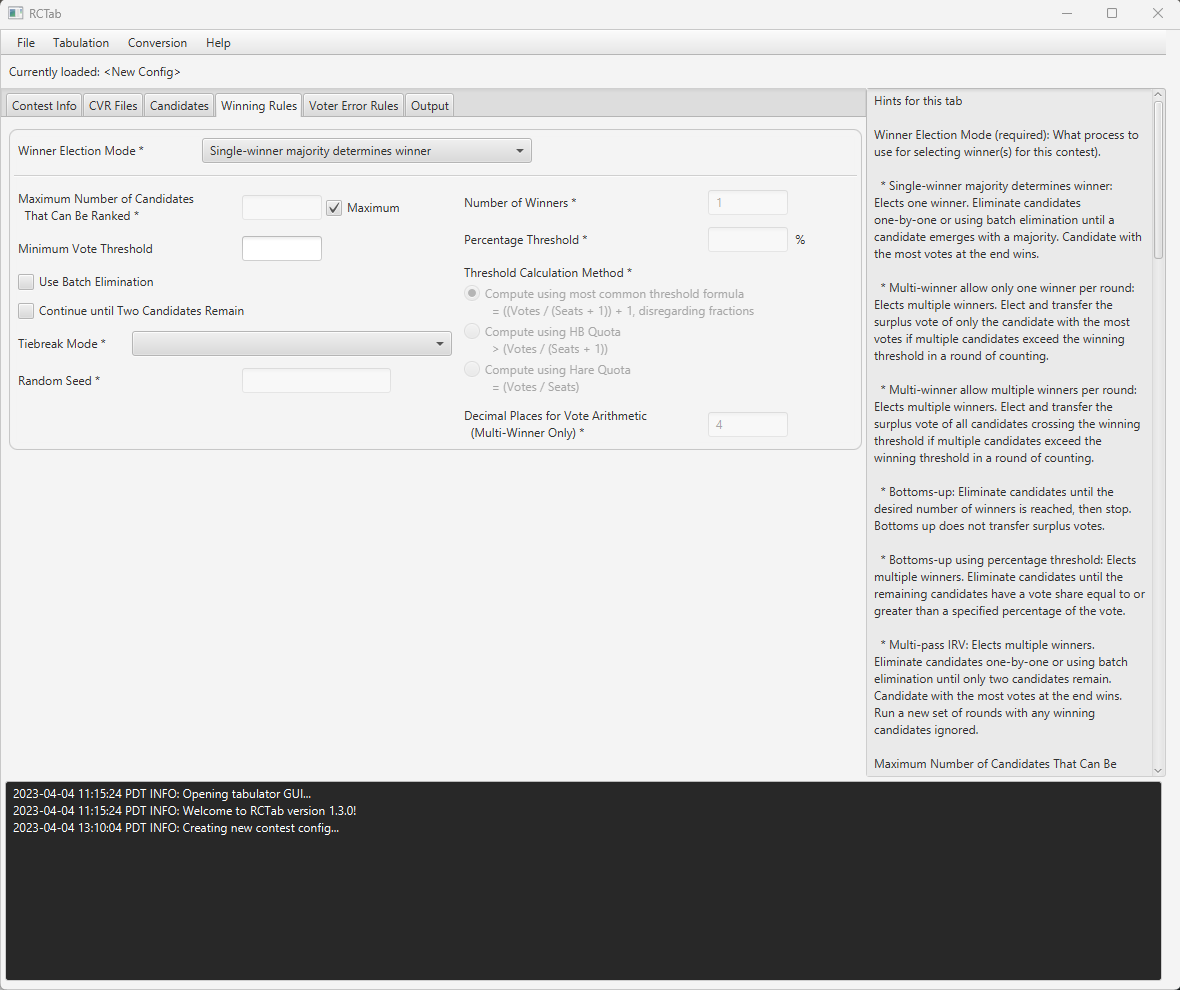
Permits user to edit these options (required settings denoted with *):
-
Maximum Number of Candidates That Can Be Ranked*
-
Minimum Vote Threshold
-
Use Batch Elimination
-
Continue until Two Candidates Remain
-
Tiebreak Mode*
-
Random Seed (* if using randomized)
Automatically fills in and locks this option:
- Number of Winners*
Invalid options, locked for this mode:
-
Percentage Threshold
-
Threshold Calculation Method
-
Decimal Places for Vote Arithmetic
Multi-winner allow only one winner per round
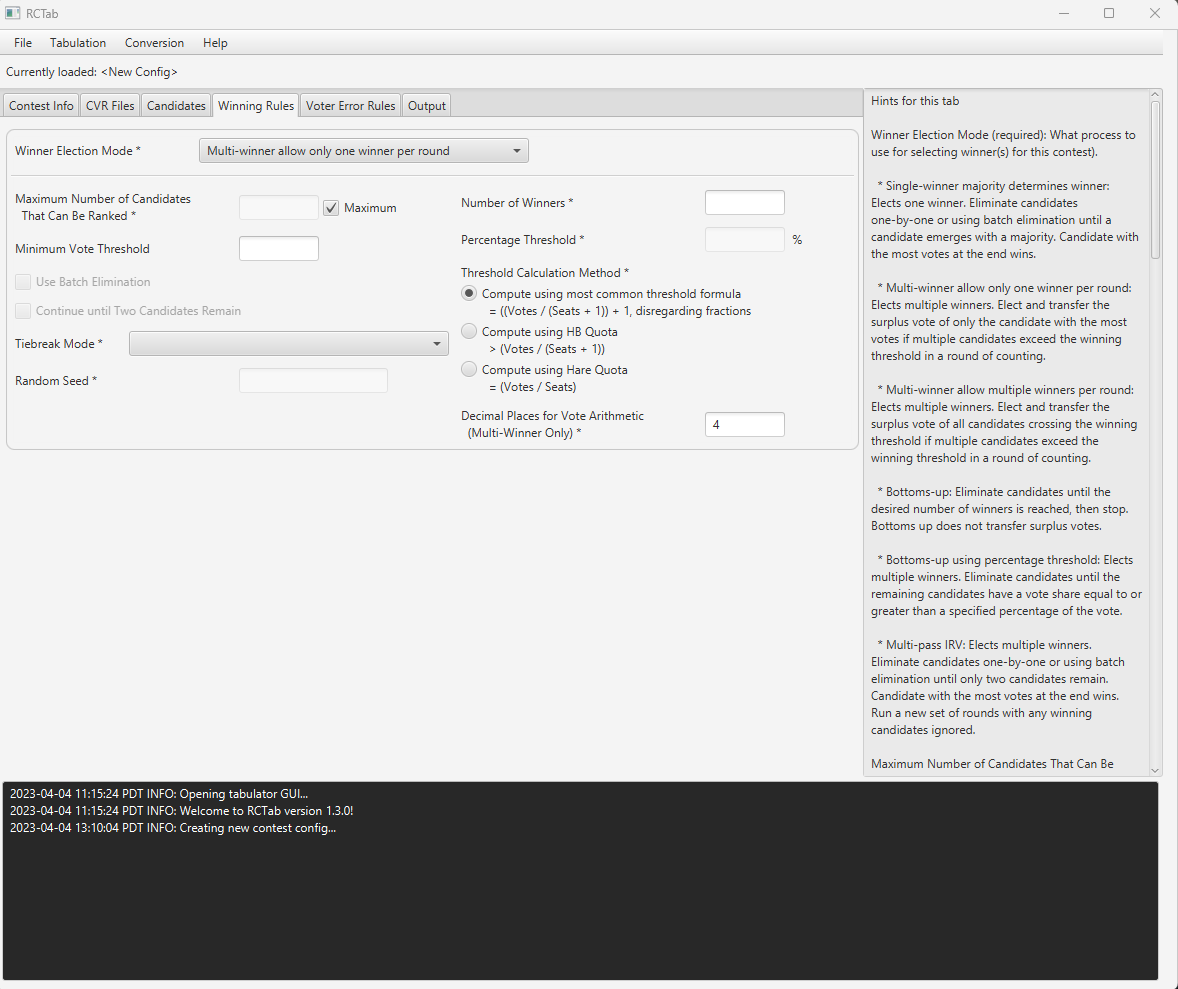
Permits user to edit these options (required settings denoted with *):
-
Maximum Number of Candidates That Can Be Ranked*
-
Minimum Vote Threshold
-
Tiebreak Mode*
-
Random Seed (* if using randomized tiebreak mode)
-
Number of Winners*
-
Threshold Calculation Method*
-
Decimal Places for Vote Arithmetic*
Invalid options, locked for this mode:
-
Percentage Threshold
-
Use Batch Elimination
-
Continue until Two Candidates Remain
Multi-winner allow multiple winners per round
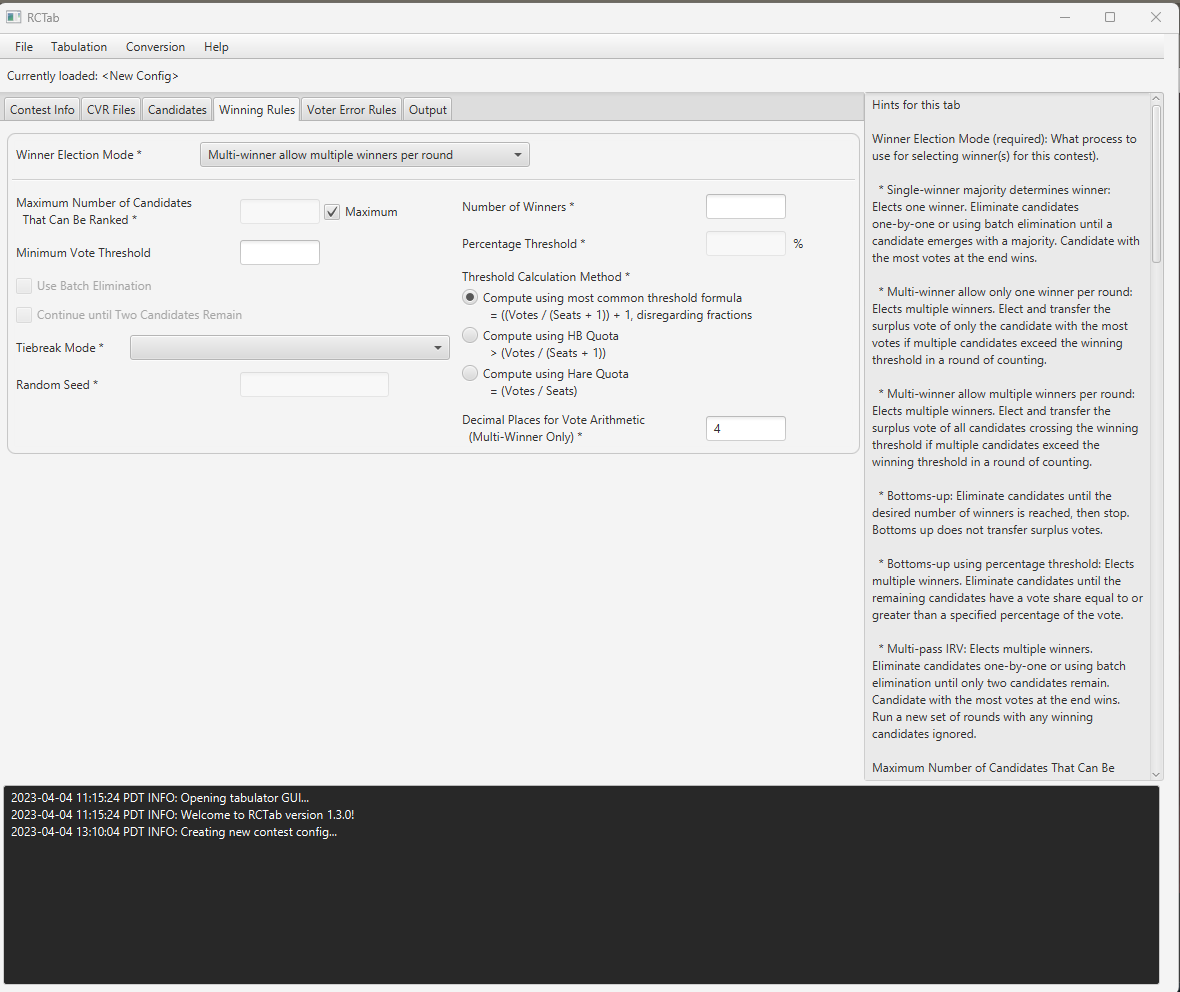
Permits user to edit these options (required settings denoted with *):
-
Maximum Number of Candidates That Can Be Ranked*
-
Minimum Vote Threshold
-
Tiebreak Mode*
-
Random Seed (* if using randomized tiebreak mode)
-
Number of Winners*
-
Threshold Calculation Method*
-
Decimal Places for Vote Arithmetic*
Invalid options, locked for this mode:
-
Use Batch Elimination
-
Continue until Two Candidates Remain
-
Percentage Threshold
Bottoms-Up
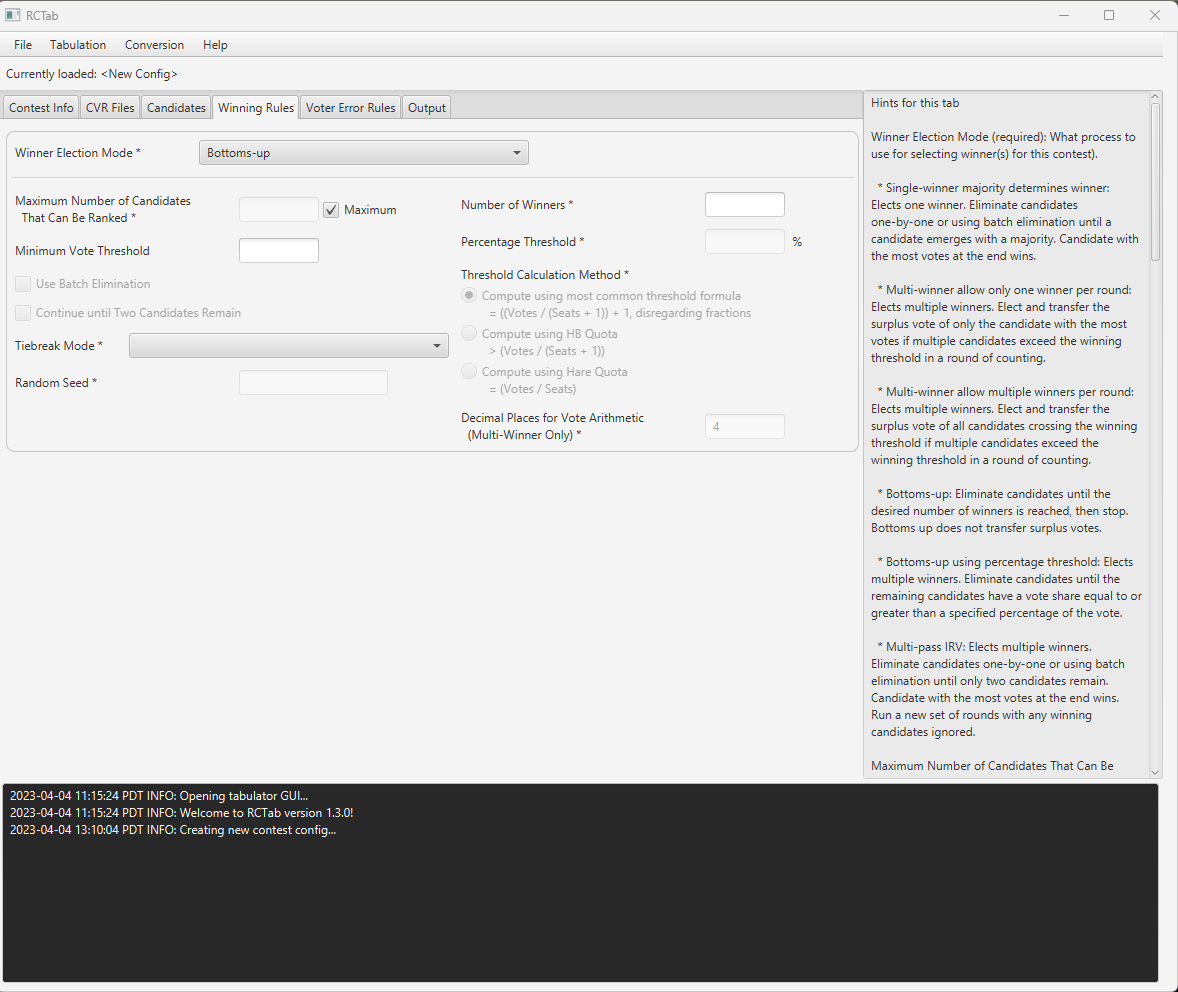
Permits user to edit these options (required settings denoted with *):
-
Maximum Number of Candidates That Can Be Ranked*
-
Minimum Vote Threshold
-
Tiebreak Mode*
-
Random Seed (* if using randomized tiebreak mode)
-
Number of Winners*
Invalid options, locked for this mode:
-
Use Batch Elimination
-
Continue until Two Candidates Remain
-
Percentage Threshold
-
Threshold Calculation Method
-
Decimal Places for Vote Arithmetic
Bottoms-up using percentage threshold
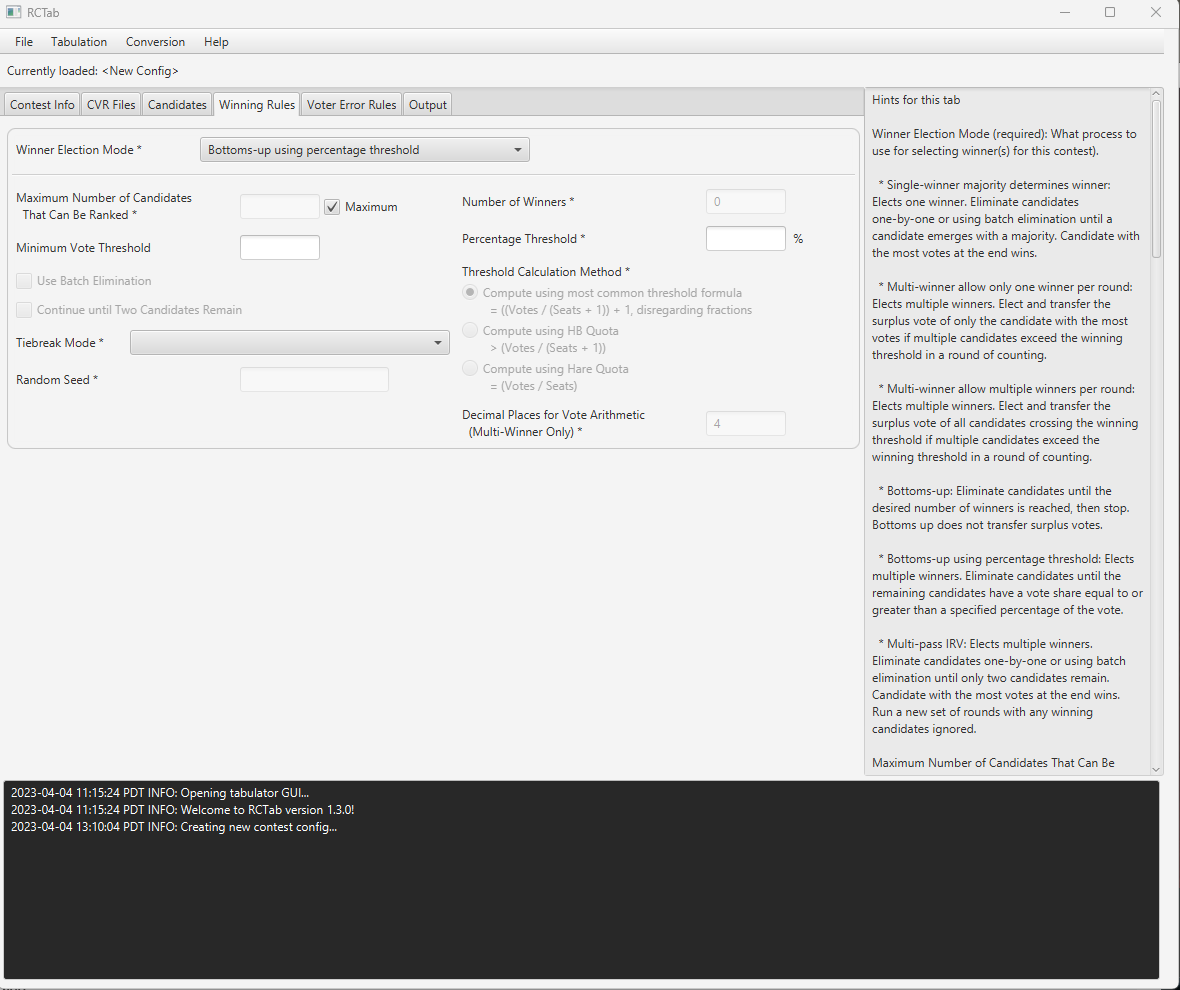
Permits user to edit these options (required settings denoted with *):
-
Maximum Number of Candidates That Can Be Ranked*
-
Minimum Vote Threshold
-
Tiebreak Mode*
-
Random Seed (* if using randomized tiebreak mode)
-
Percentage Threshold*
Automatically fills in and locks this option:
- Number of Winners*
Invalid options, locked for this mode:
-
Use Batch Elimination
-
Continue until Two Candidates Remain
-
Threshold Calculation Method
-
Decimal Places for Vote Arithmetic
Multi-pass IRV
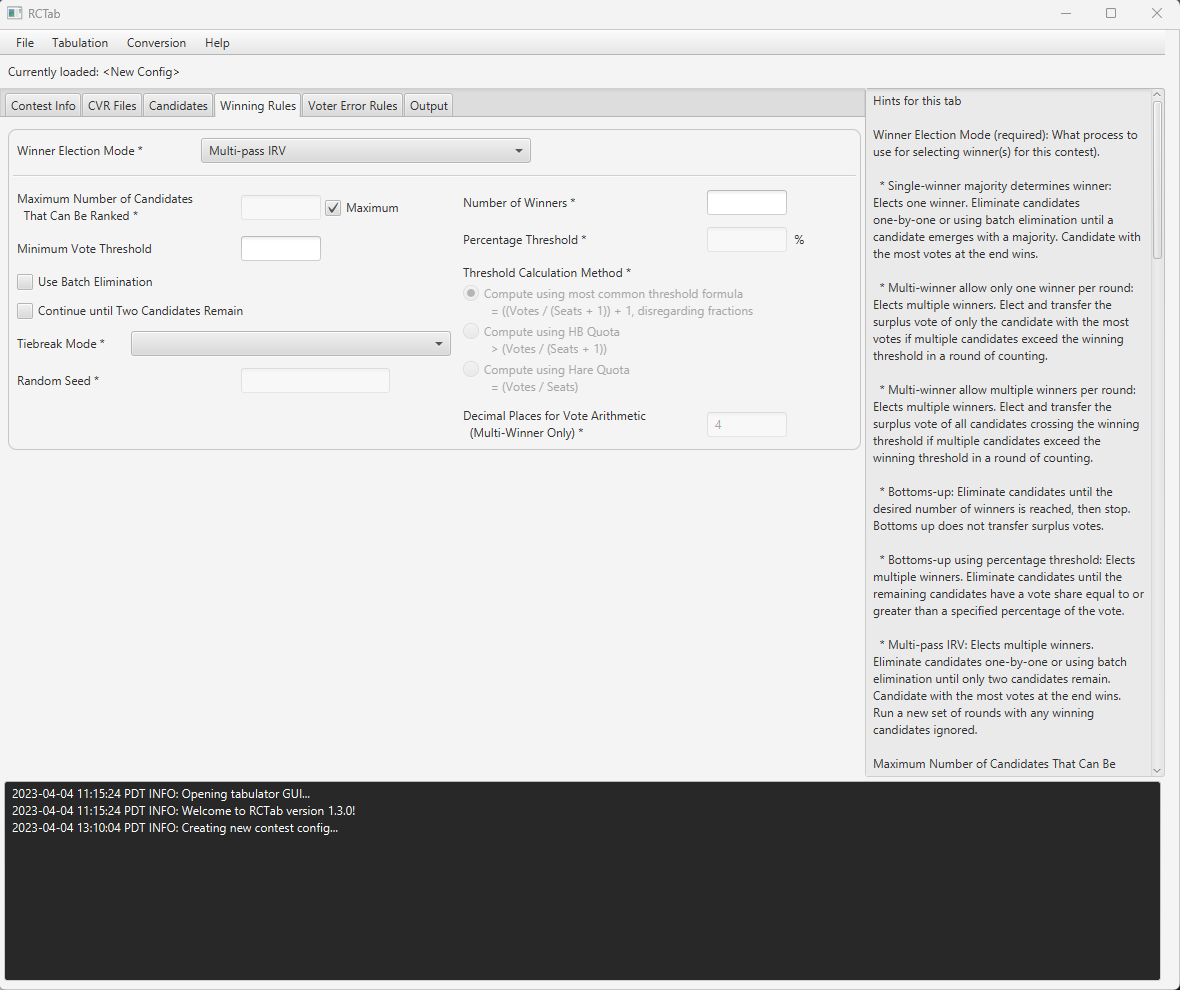
Permits user to edit these options (required settings denoted with *):
-
Maximum Number of Candidates That Can Be Ranked*
-
Minimum Vote Threshold
-
Tiebreak Mode*
-
Random Seed (* if using randomized tiebreak mode)
-
Number of Winners*
Invalid options, locked for this mode:
-
Use Batch Elimination
-
Continue until Two Candidates Remain
-
Threshold Calculation Method
-
Decimal Places for Vote Arithmetic
-
Percentage Threshold
Tiebreak Modes
Random, Generate Permutation, Previous Round Counts (then random)
If users select any of the tiebreaking modes that incorporate randomness (random, generate permutation, previous round counts (then random)) this is how RCTab will appear. Users must fill out the Random Seed setting.
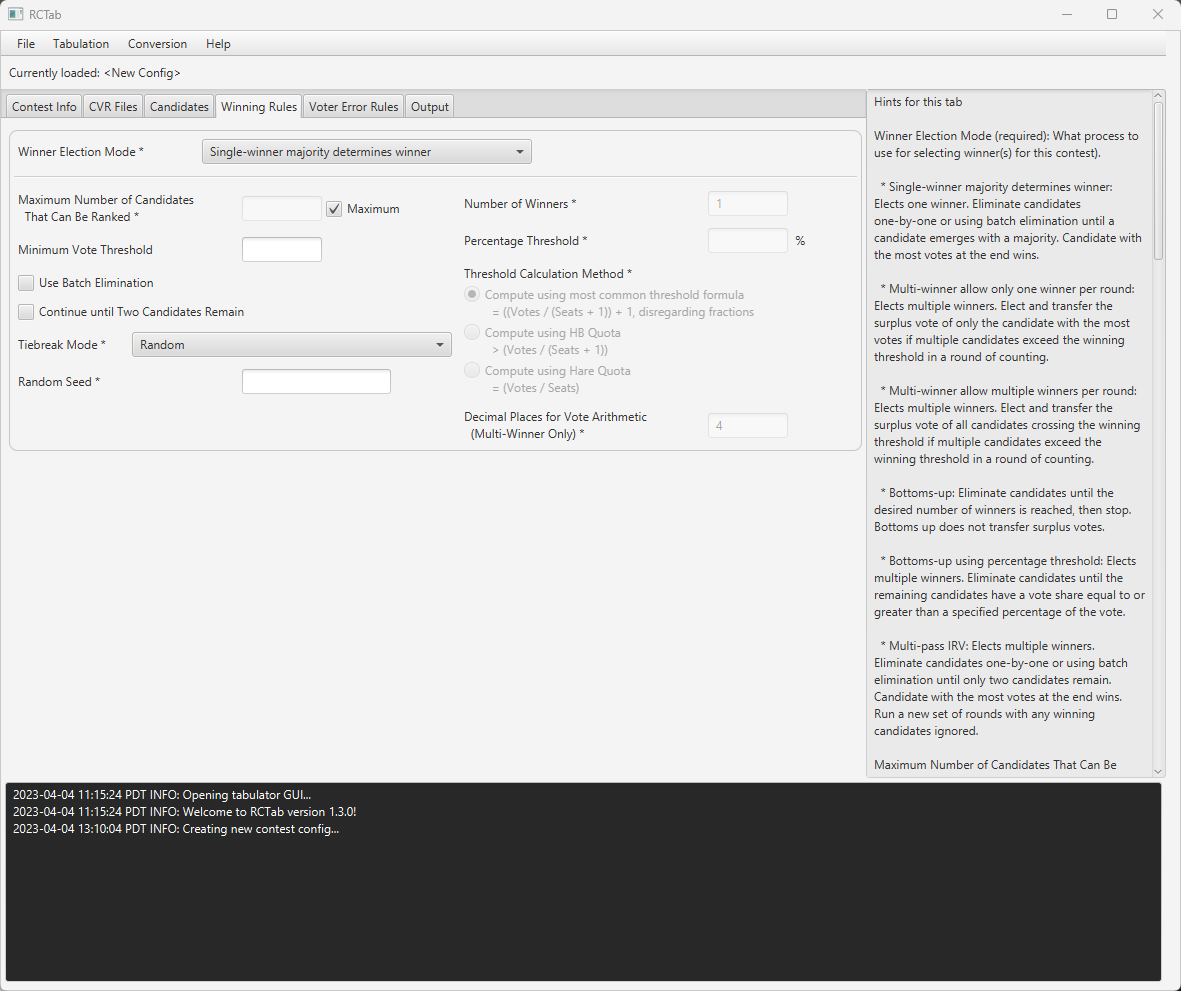
Stop counting and ask, previous round counts (then stop counting and ask), use candidate order in the config file
If users select any of the tiebreaking modes that incorporate user input (Stop counting and ask, previous round counts (then stop counting and ask), use candidate order in the config file) this is how RCTab will appear. The Random Seed field will be locked.
Voter Error Rules
The tabulator needs to know how to handle voter errors in your jurisdiction. These requirements are typically included in statute or regulation. This is a screenshot of what winning rules looks like when a user first navigates to it.
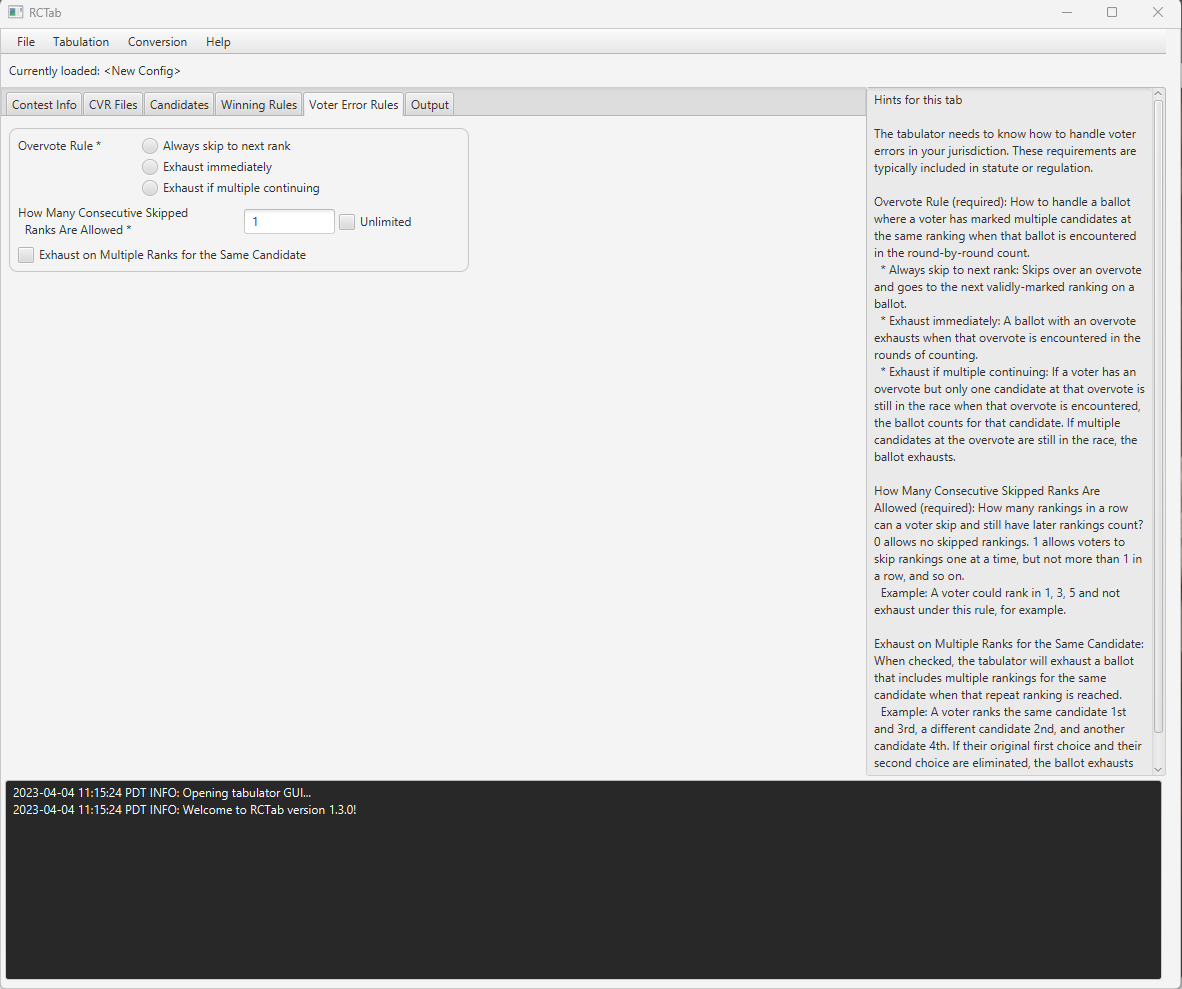
Overvote Rule (required): How to handle a ballot where a voter has marked multiple candidates at the same ranking when that ballot is encountered in the round-by-round count.
-
Always skip to next rank: Skips over an overvote and goes to the next validly-marked ranking on a ballot.
- Requires Overvote Label to be supplied (when overvote label can be edited)
-
Exhaust immediately: A ballot with an overvote exhausts when that overvote is encountered in the rounds of counting.
- Requires overvote label to be supplied (when overvote label can be edited)
-
Exhaust if multiple continuing: If a voter has an overvote but only one candidate at that overvote is still in the race when that overvote is encountered, the ballot counts for that candidate. If multiple candidates at the overvote are still in the race, the ballot exhausts.
- Requires overvote delimiter to be supplied (when overvote delimiter can be edited)
How Many Consecutive Skipped Ranks Are Allowed (required): How many rankings in a row can a voter skip and still have later rankings count? 0 allows no skipped rankings. 1 allows voters to skip rankings one at a time, but not more than 1 in a row, and so on. Selecting the checkbox disables the text box and inserts the value “unlimited”. Checkbox can be unselected. Default value: 1.
Example: A voter could rank in 1, 3, 5 and not exhaust under this rule, for example.
Exhaust on Multiple Ranks for the Same Candidate (optional): When checked, the tabulator will exhaust a ballot that includes multiple rankings for the same candidate when that repeat ranking is reached. When unchecked repeated rankings will not exhaust the ballot.
Example: A voter ranks the same candidate 1st and 3rd, a different candidate 2nd, and another candidate 4th. If their original first choice and their second choice are eliminated, the ballot exhausts when it reaches the repeat ranking in rank 3. The ranking in the 4th rank does not count.
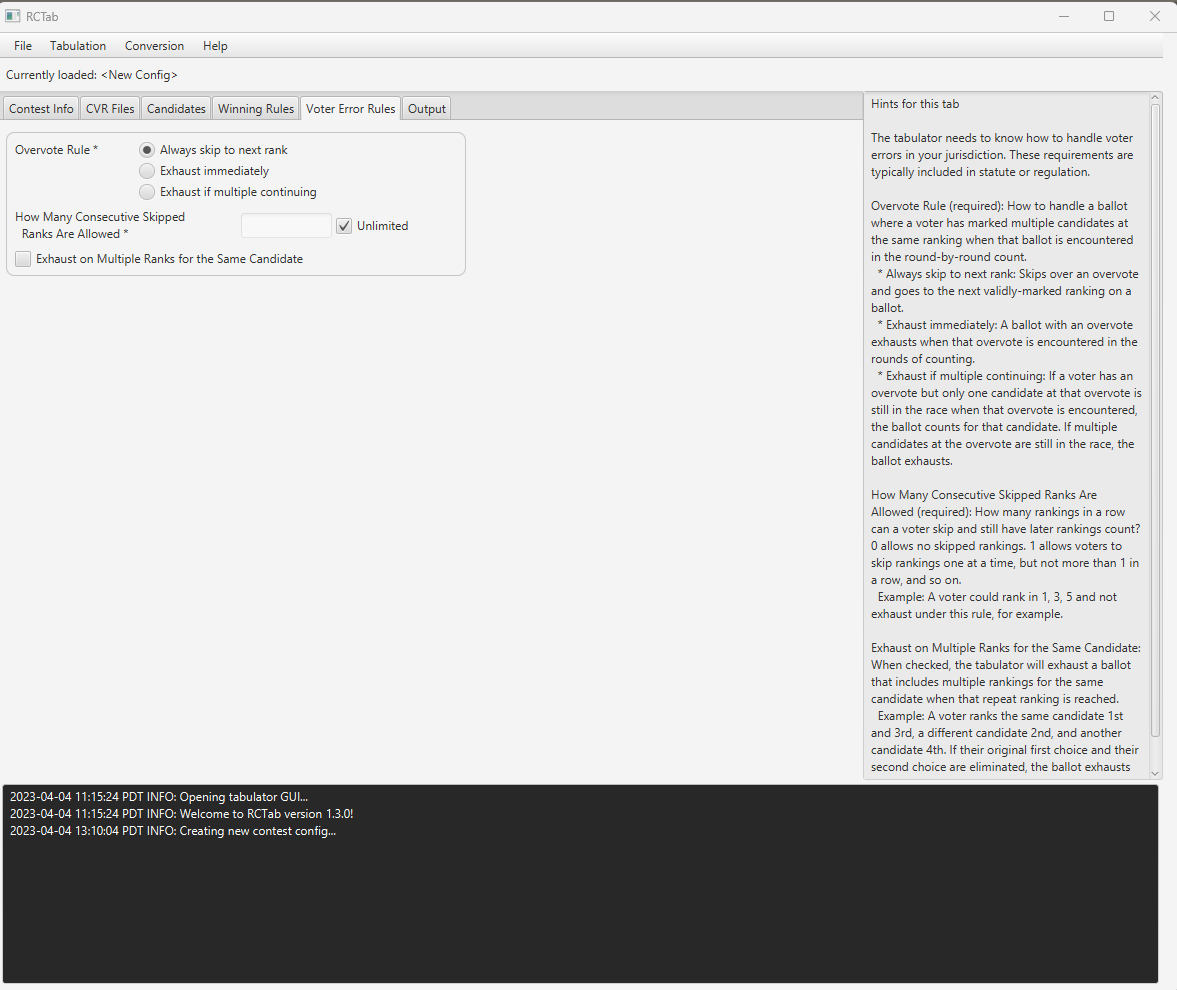
Below is an example screenshot of a sample filled-out voter error rules tab. The user has selected Always skip to next rank for Overvote, has selected unlimited for How Many Consecutive Skipped Ranks Are Allowed (making the text box inoperable) and has left Exhaust on Multiple Ranks for the Same Candidate blank.
Output Tab
Tell the tabulator where results files go and what additional results files you want. This is a screenshot of what output looks like when a user first navigates to it.
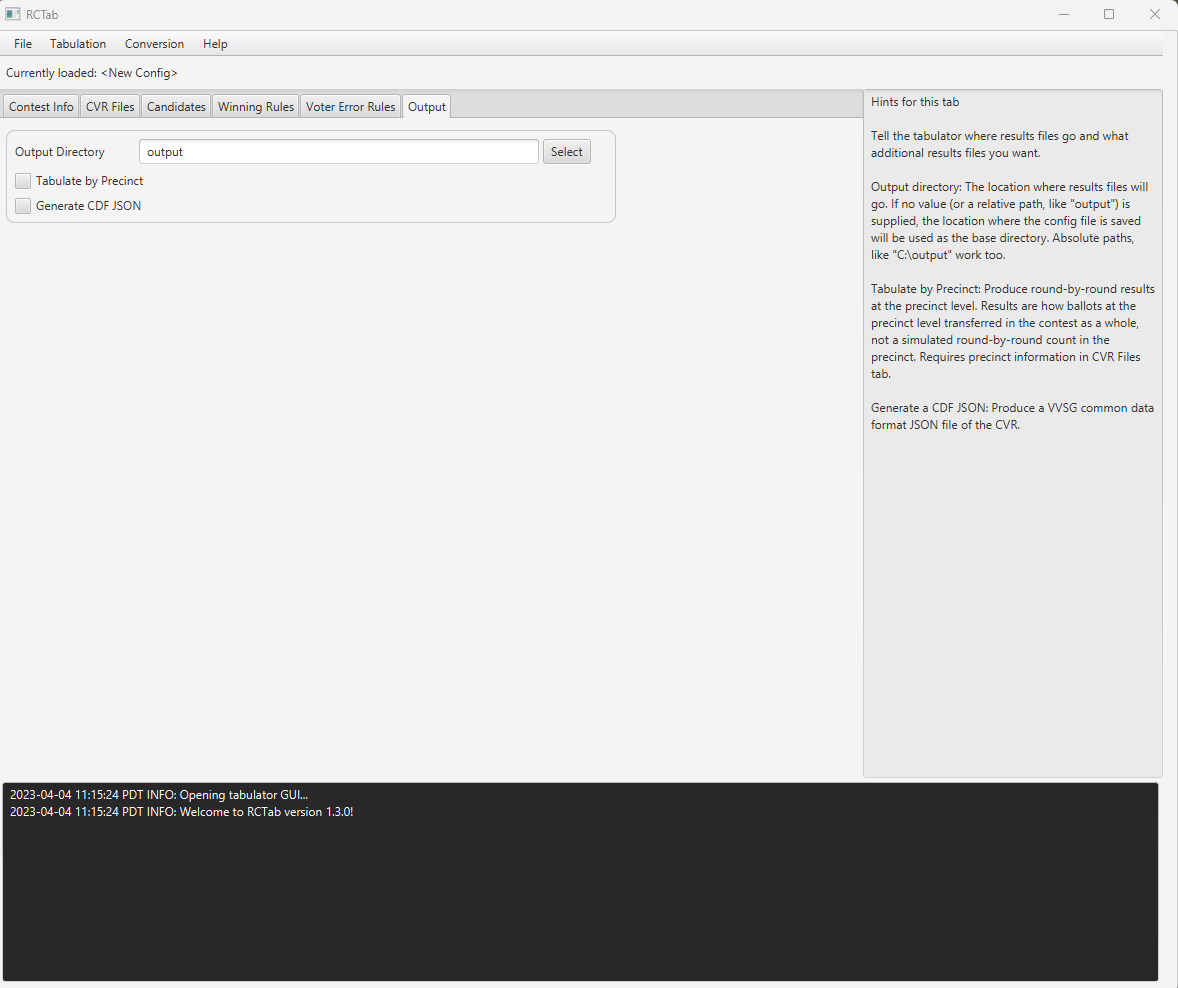
Output directory: One folder per contest tabulated should be created. Output directory instructs RCTab where to save any output files from successful RCTab tabulations. The location where results files will go. If no value (or a relative path, like "output") is supplied, the location where the config file is saved will be used as the base directory. Absolute paths, like "C:\output" work too. Select allows users to navigate through Explorer to select a location.
RCTab will not allow the output path to be configured to a Windows user account folder (by default anything under the path c:\users\. This requirement ensures read-only output. You must follow the instructions in RCTab v1.3.2 Section 22 - Installation Instructions for Windows OS v.1.2.2 to set permissions on the output folder. Following these instructions ensures that the ‘RCTab’ user account cannot edit or delete RCTab summary output files or audit logs.
Tabulate by Precinct: Produce round-by-round results at the precinct level. Results are how ballots at the precinct level transferred in the contest as a whole, not a simulated round-by-round count in the precinct. Requires precinct information in CVR Files tab for ES&S CVRs. Impacts which files are written to the output directory.
Generate a CDF JSON: Produce a VVSG common data format JSON file of the CVR. Impacts which files are written to the output directory.
Generating Results Files
Validating Configuration files
Once a configuration file is successfully created, the user must validate the configuration file.
-
Click on “Tabulation” at the top of the software window
-
Click on “Validate”
-
Refer to the log box at the bottom of the application. If the message “Contest config validation successful.” appears, your contest configuration has been successfully completed.
-
If any error messages appear in the log box, refer to RCTab v1.3.2 Section 29 - RCTab Operator Log Messages v.1.2.2 and messages in the log box for how to resolve errors. If the error persists, restart the RCTab software
Saving Configuration Files
Once ready to run a tabulation, the user must first save the configuration file.
-
Click on “File” at the top of the software window
-
Click on “Save…”
-
Select a location to save the configuration file. The manufacturer suggests users save the configuration file to the same location set in the Output Directory setting.
-
Refer to the log box at the bottom of the application. If the message “Successfully saved file: Filepath” your configuration .json file has been successfully saved.
-
If any error messages appear in the log box, refer to 430 RCTab Operator Log Messages documentation and messages in the log box for how to resolve errors. If the error persists, restart RCTab software.
Running a Tabulation
Once a configuration is saved, the user is ready to run a tabulation.
-
Click on “Tabulation” at the top of the software window
-
Click on “Tabulate”
-
Tabulation will begin.
-
If all the above steps were successfully completed, Tabulation will run until complete.
-
Tabulator log box will update with messages as Tabulation proceeds.
-
Once complete, the Tabulator log box will display a message stating “Results written to: [filepath from Output Directory]”
Output files will be:
-
.csv contest summary files
-
summary.csv Whole-contest summary file
-
summary.csv.hash Corresponding hash file. This contains the hash to verify the results in summary.csv
-
Precinct-by-precinct summary files (if tabulating by precinct)
-
-
.json contest summary files
-
summary.json Whole-contest summary file
-
summary.json.hash Corresponding hash file. This contains the hash to verify the results in summary.json
-
Precinct-by-precinct summary files (if tabulating by precinct)
-
-
.log audit files
-
.log audit files are exported in 50MB sections. If a .log file exceeds 50MB an additional .log file is started by RCTab
-
Corresponding audit_N.log.hash file. This contains the hash to verify the information in each audit_N.log file
-
-
.json CDF (common data format) files if Generate a CDF JSON is checked
If necessary, instructions for verifying result file hashes can be found in RCTab v.1.3.1 Section 23 - Trusted Build & Output Hash Verification - Windows OS v.1.2.2.
Users can then navigate to “File” and click “Exit” if all contests are tabulated.
If more contests remain to be tabulated, and contests will contain fewer than 1,000,000 total votes, user can navigate to “File” and click “New.” This will clear all fields in RCTab and permit the user to create a new configuration file.
If contests to be tabulated will contain more than 1,000,000 total votes, return to start of guide and re-launch tabulator according to large configuration launch requirements. Then follow the guide to set up a configuration file.
If any errors arise in the use of RCTab, refer to RCTab v1.3.2 Section 29 - RCTab Operator Log Messages v.1.2.2. Errors arising out of any hardware or software other than RCTab should refer to RCTab v1.3.2 Section 09 - System Maintenance Manual v.1.3.2 and any relevant user and maintenance manuals.
Before publishing results, jurisdictions should use their established reconciliation procedures to ensure total votes counted in each round equals total ballots cast in the contest. If numbers in the reconciliation process do not match, the user should double-check that all CVRs for that contest were exported successfully from the voting system and run RCTab process for that contest again. Rely on user jurisdiction CVR handling procedures for transmitting CVRs.
Any interaction with RCTab, including producing configuration files, running tabulations, hashing results files, and transmission of files from RCTab on USB drives should follow transmission procedures required in the jurisdiction, including the use of a team of no less than two trained personnel.
Required capabilities that may be bypassed or deactivated during installation or operation by the user shall be clearly indicated.
Additional capabilities that function only when activated during installation or operation by the user shall be clearly indicated.
Additional capabilities that normally are active but may be bypassed or deactivated during installation or operation by the user shall be clearly indicated.
The installation process for RCTab software does not give users the opportunity to bypass or deactivate options or settings.
Capabilities that are active or inactive in software operation depend on various factors. Many of these factors are laid out above. Configuration files determine which system capabilities apply to a given set of voting data. More information about operations that users can set through the user interface is provided in RCTab v1.3.2 Section 25 - Configuration File Parameters v.1.1.1. Information about the operation of those settings is also provided in RCTab v1.3.2 Section 02 - Software Design and Specifications v.1.4.2.
Glossary of Terms
| Batch elimination | A simultaneous defeat of multiple continuing contest options for which it is mathematically impossible to be elected or to prevail. Discussion
|
||
|---|---|---|---|
| Continuing Ballot | A ballot that will be processed in the current contest RCV round. | ||
| Continuing Contest Option | A qualified candidate, measure, issue, or other contest option that has not yet been elected, approved, or eliminated in the current round or instance of RCV contest processing. | ||
| Exhausted Ballot | A ballot encountered in a round of RCV processing of a contest that has no further valid rankings of continuing contest options or that contains a condition in a subsequent choice that invalidates further consideration of the ballot. Equivalent term: Inactive Ballot Discussion
|
||
| Highest-ranked continuing contest option | The next preferred continuing contest option on a given ranked ballot. | ||
| Highest Continuing Ranking | The ranking on a voter's ballot with the lowest numerical value or the next highest position in sequence for a continuing RCV contest option. | ||
| Inactive Ballot | Equivalent to Exhausted Ballot. Discussion
|
||
| Majority of Votes | Greater than 50-percent of the votes counted for a contest for all continuing contest options in an RCV round. Technical Definition
Discussion
|
||
| Mathematically Impossible to be Elected or Prevail | A contest option in an RCV contest where the current vote total plus all votes that could possibly be transferred to it in future rounds would not be sufficient to surpass the contest option with the next higher current vote total. Discussion
|
||
| Overvote | Occurs when the number of selections made by a voter in a contest is more than the maximum number allowed. Discussion
|
||
| Overvote RCV ranking | A ranking assigned to more than one contest option. | ||
| Ranking, RCV | The number or position selected for a contest option to indicate a voter's ranked preference for that option. | ||
| Repeated ranking | Selection of more than one ranking for the same contest option for the contest being counted. Discussion
|
||
| Residual surplus | Any vote value lost due to rounding/truncation during the surplus transfer process. | ||
| Round of counting or round | A round is a subprocess in the tabulation process during which current votes for all continuing contest options are counted in accordance with the applicable tabulation method counting rules. Technical Definition
Discussion
|
||
| Skipped ranking, RCV | When a voter omits a ranking and ranks a contest option at a subsequent ranking. | ||
| Surplus | The number of votes cast for a contest option in excess of the number required to meet or exceed the applicable threshold rule. Discussion
|
||
| Surplus fraction | The proportion of each vote to be transferred when a surplus is transferred. Technical Definition
Discussion
|
||
| Threshold/Quota, RCV | The number of votes that are sufficient for a contest option to prevail. In STV, it is also the point at or above which additional votes for a contest option are considered to be surplus. | ||
| Transfer value | The transfer value of a ballot is the one vote or portion of a vote that the ballot will contribute to the vote total for the ballot’s highest-ranked continuing contest option after a surplus transfer or elimination of one or more contest options. Technical Definition
|
Configuration File Parameters and UI Label Match Sheet
Below is a list of all configuration file parameter labels and their corresponding labels in RCTab UI. Labels are organized by the order of their appearance in the RCTab UI.
Configuration File Parameters Name/Label | UI Name/Label
contestName | Contest Name
contestDate | Contest Date
contestJurisdiction | Contest Jurisdiction
contestOffice | Contest Office
rulesDescription | Rules Description
provider | Provider
cdf | CDF
clearBallot | Clear Ballot
Dominion | Dominion
ess | ES&S
hart | Hart
filePath | Path
contestId | Contest ID
firstVoteColumnIndex | First Vote Column
firstVoteRowIndex | First Vote Row
idColumnIndex | ID Column
precinctColumnIndex | Precinct Column
overvoteDelimiter | Overvote Delimiter
overvoteLabel | Overvote Label
undervoteLabel | Undervote Label
undeclaredWriteInLabel | Undeclared Write-in Label
treatBlankAsUndeclaredWriteIn | Treat Blank as Undeclared Write-In
name | Name
code | Code
excluded | Excluded
winnerElectionMode | Winner Election Mode
singleWinnerMajority | Single-Winner Majority Determines Winner
multiWinnerAllowOnlyOneWinnerPerRound | Multi-Winner Allow Only One Winner Per Round
multiWinnerAllowMultipleWinnersPerRound | Multi-Winner Allow Multiple Winners Per Round
bottomsUp | Bottoms-up
bottomsUpUsingPercentageThreshold | Bottoms-up using Percentage Threshold
multiPassIrv | Multi-Pass IRV
maxRankingsAllowed | Maximum Number of Candidates That Can Be Ranked
minimumVoteThreshold | Minimum Vote Threshold
batchElimination | Use Batch Elimination
continueUntilTwoCandidatesRemain | Continue Until Two Candidates Remain
tiebreakMode | Tiebreak Mode
random | Random
stopCountingAndAsk | Stop counting and ask
previousRoundCountsThenRandom | Previous Round Counts (then random)
prevousRoundCountsThenAsk | Previous Round Counts (then stop counting and ask)
useCandidateOrder | Use candidate order in config file
generatePermutation | Generate permutation
randomSeed | Random Seed
numberOfWinners | Number of Winners
multiSeatBottomsUpPercentageThreshold | Percentage Threshold
nonIntegerWinningThreshold | Compute using HB Quota >(Votes/ (Seats + 1))
hareQuota | Compute using Hare Quota =(Votes/Seats)
decimalPlacesForVoteArithmetic | Decimal Places for Vote Arithmetic (Multi-Winner Only)
overvoteRule | Overvote Rule
alwaysSkipToNextRank | Always skip to next rank
ExhaustImmediately | Exhaust Immediately
exhaustIfMultipleContinuing | Exhaust if multiple continuing
maxSkippedRanksAllowed | How Many Consecutive Skipped Ranks Are Allowed
exhaustOnDuplicateCandidate | Exhaust on Multiple Ranks for the Same Candidate
outputDirectory | Output Directory
tabulateByPrecinct | Tabulate by Precinct
generateCdfJson | Generate CDF JSON
| Document Revision History | |||
|---|---|---|---|
| Date | Version | Description | Author |
| 10/11/2023 | 1.2.2 |
|
Mathew Ruberg |
| 04/27/2023 | 1.2.1 | Updated to reflect v.1.3.1 | Kelly Sechrist |
| 04/04/2023 | 1.2.0 | Updated to Reflect RCTab v.1.3.0 | Rene Rojas |
| 01/06/2022 | 1.1.0 | Updated URCVT to RCTab and removed state specific requirements | Rene Rojas |
| 09/07/2021 | 1.0.1 | Generic Non-state specific changes | Kelly Sechrist |
| 04/27/2021 | 1.0.0 | 18 User Guide Created | Chris Hughes |