RCTab v1.3.2 Section 14 - Tabulator Trusted Build Instructions v.1.2.2
RCTab v1.3.2 Section 14 - Tabulator Trusted Build Instructions v.1.2.2 document is solely for use in the State of California. This document can be expanded or updated as is necessary or required. Where relevant, this document refers to specific sections and requirements of the California Voting System Standards. Any recommendations listed in this document should not supersede user jurisdiction procedures or other controlling governance entities.
Environment variables
Other than where specifically indicated below, building the application and generating hashes does not require that the system have any environment variables defined in advance.
Full build
RCTab can be built on any COTS x64 Windows machine with
-
Windows 10 or greater
-
At least 1GB of free space
-
4GB of RAM
To generate a build from the source code and then generate a hash of that build, use the following steps.
Important note for Windows users: to ensure that the files in your copy of the repository exactly match the ones that were originally used to generate the Windows release build, you must have Git’s autocrlf setting enabled before you clone the repository. This setting will cause Git to automatically convert the line endings in each source file from Unix-style (\n) to DOS-style (\r\n) when it clones the repository to your machine.
Git
-
If Git is not already present on the machine, install it. The Windows version of Git is available here: https://gitforwindows.org/.
-
X64 git installer is Git-2.42.0.2-64-bit.exe with a SHA256 of bd9b41641a258fd16d99beecec66132160331d685dfb4c714cea2bcc78d63bdb
-
Run through the installer with all default settings
-
-
(If on Windows) Enable the autocrlf setting by running this command in the command prompt: git config --global core.autocrlf true
-
Clone the repository with this command:
git clone -branch v1.3.2 https://github.com/BrightSpots/rcv.git
For the rest of this example we’ll refer to the folder that you cloned the repo into as .\
Java
Building the application will also require the proper version of the Java development kit to be installed on the machine. Download and install the Windows x64 version of OpenJDK 17.0.2 (build 17.0.2+8) https://jdk.java.net/archive/. The SHA256 for the build 17.0.2+8 Windows x64 installer is
b2208206bda47f2e0c971a39e057a5ec32c40b503d71e486790cb728d926b615
(Note that you must use this exact version of the JDK. If you obtain the JDK from a different location, even if the version and build numbers are the same, it may have subtle differences that will prevent your build from matching ours via the process we’ve developed. Specifically, we’ve determined that the Oracle-licensed build of OpenJDK is not identical to the London Jamocha Community CIC-licensed build.)
Use the following instructions to set your JAVA_HOME variable, a requirement for building the source code
-
Go to Start Menu and search for “Advanced System Settings”
-
Click ‘View Advanced System Settings’
-
Go to the Advanced Tab and click ‘Environment Variables’ button
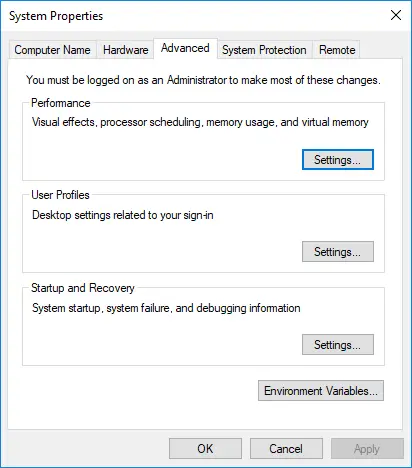
-
In the Environment Variables window that pops up, in the bottom System variables section click ‘New’ and add JAVA_HOME as the Variable name and click ‘Browse Directory’ to browse to your unzipped java folder and set it’s path as the Variable value
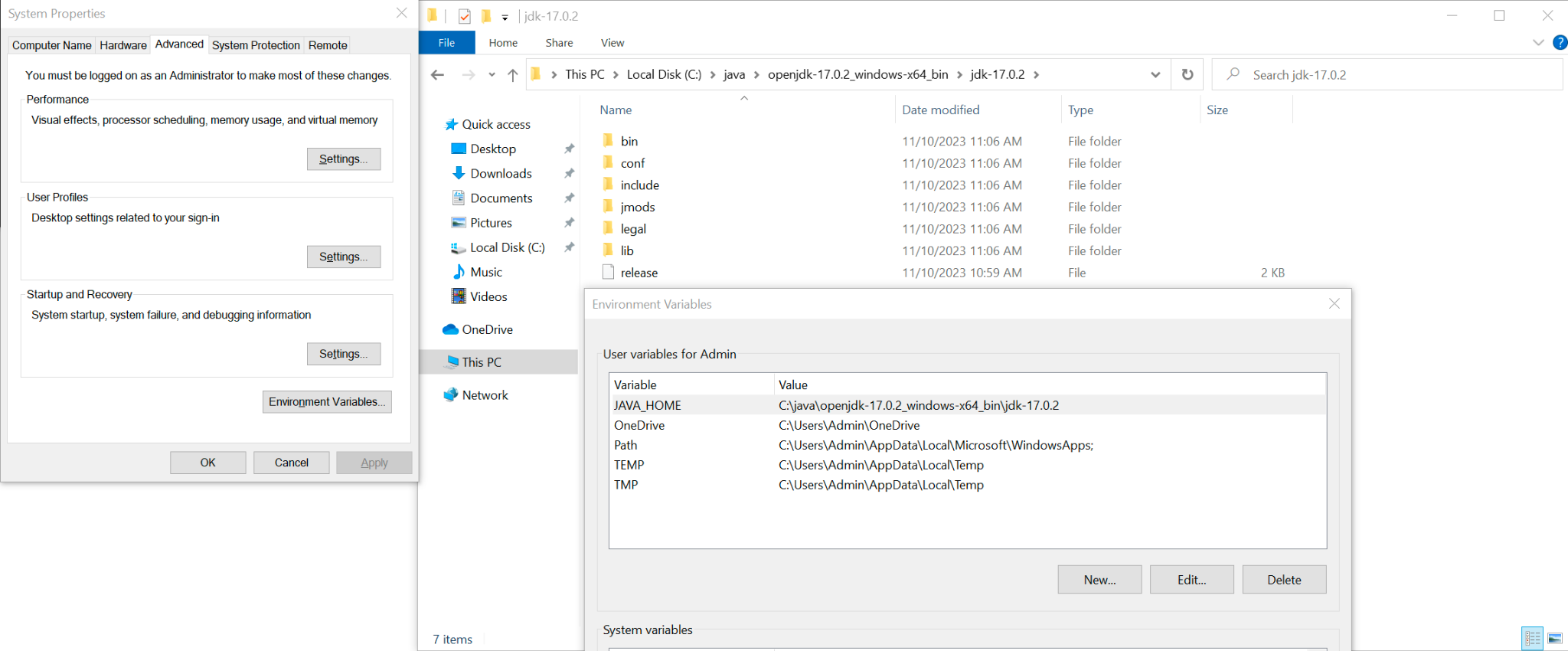
-
Go back to the Environment Variables window, find the Path entry in the bottom System Variables section and click edit
-
Click ‘New’ and add %JAVA_HOME%\bin
-
Click ‘Ok’
-
Confirm that Java 17.0.2 is properly installed by running this command in the cmd prompt java –version you should see an entry for openjdk 17.0.2 2022-01-18
Building From Source
Next, navigate into the .\rcv\ directory in the top-level of the folder you cloned the git repo into earlier. We will run a command that will build the RCTab source code along with all of the external libraries that it depends on (which are listed in RCTab v1.3.2 Section 02 - Software Design and Specifications v.1.4.2). This command will download the external dependencies and then build the RCTab from source using Java 17.0.2 and Gradle 7.5.1
The Gradle build command on Windows:
gradlew.bat jlinkZip
The output of the Gradle build command is a single ZIP file called rcv.zip that will be located in the .\rcv\build\ subdirectory. To complete the build process, rename the ZIP file to reflect the platform and version of the application.
On Windows, building version 1.3.2 for example
rename build\rcv.zip build\rctab_v1.3.2_windows.zip
To generate a hash signature for the completed build, run this command on Windows:
C:\Windows\System32\certutil.exe -hashfile build\rctab_v1.3.2_windows.zip sha512
Example output on Windows:
SHA512 hash of build\rctab_v1.3.2_windows.zip:
a3bc3f93a213f3542ca64d085a701174c154044a37e5c33c39adcbbc325e38c609ef1ae6f678bd34b4a477a85201d48dfec8b8b341b4c62b40f127bbfdadbb81
CertUtil: -hashfile command completed successfully.
Note, however, that two independent runs of the jlinkZip task will result in ZIP files with different hashes! Although the file contents in the two ZIP files will be identical, the timestamps of those files will not be. Those timestamps are included in the hash and thus, the hashes will not match. As a result, generating a hash for the ZIP file itself is only suitable for verifying that this build has not been modified.
To confirm that the file contents of one build match those of another, for example that the local build matches the official release on the BrightSpots github, see ‘Comparing Two Builds’ below.
Comparing two builds
As noted above, two independent builds of the same source code will have different hashes due to the presence of file timestamps within the ZIP file. It is, however, possible to demonstrate that two builds are equivalent by stripping the timestamps.
The process for generating a single timestamp-independent hash signature for a build ZIP requires a few steps: not only does the ZIP file store timestamps for the files it contains, but one of the files within the ZIP file, lib/modules, is, in turn, a collection of time stamped files. Fully decomposing the build to its individual constituent files thus requires using the jimage utility (part of the Java 17 development kit) to extract the files contained within lib/modules.
-
First, unzip the ZIP you built locally (by following the precise instructions in the “Full build” section above). For the rest of this example we’ll assume that you extracted the zip files to c:\rctab_v1.3.2_windows\
-
**Make sure not to execute any other commands that create, modify, or delete files within this directory (like opening the application). Any modifications to these files will change the result of the hashing process.
-
Create a hash.bat file in the c:\rctab_v1.3.2_windows\ folder with the following command echo.>hash.bat
-
Open hash.bat in notepad and paste in the text below these bullets (starting with ::hash.bat)
-
Run the batch file in the cmd prompt by typing hash.bat then enter. **It can take 30-45 minutes to complete as it is computing a hash for every single file
:: hash.bat
@echo off
:: NOTE: This script must be placed one level up from the rcv directory
echo Initiating batch hash procedure…
echo %date% %time%
setlocal EnableExtensions EnableDelayedExpansion
set "HASHFILE=all_hashes.txt"
set "TEMPHASHFILE=all_hashes_temp.txt"
set "EXTRACTIONDIR=.\rcv\modules_extracted"
set "MODULESFILE=.\rcv\lib\modules"
if exist %HASHFILE% (
echo Deleting existing hash file, %HASHFILE% ...
del %HASHFILE%
)
if exist %EXTRACTIONDIR% (
echo Deleting existing extracted modules directory, %EXTRACTIONDIR% ...
rmdir /s /q %EXTRACTIONDIR%
)
echo Extracting contents of modules file...
mkdir %EXTRACTIONDIR%
cd %EXTRACTIONDIR%
jimage extract ..\.\MODULESFILE%
echo Temporarily relocating modules file...
cd ..\.
copy %MODULESFILE% .
del %MODULESFILE%
:: Calculate the hash for every file here and in all subdirectories, appending to the file (format "(filename) = (hash)")
echo Calculating hashes...
for /r .\rcv %%f in (*) do (
<NUL set /p ="%%f = " >> %HASHFILE%
C:\Windows\System32\certutil.exe -hashfile "%%f" SHA512 | findstr /v ":" >> %HASHFILE%
)
echo Restoring modules file...
move .\modules %MODULESFILE%
:: Replace the absolute paths to each file with relative paths (e.g. C:\temp\rcv => .\rcv)
echo Replacing absolute paths with relative paths in hash file...
set "SEARCHTEXT=%cd%"
set "REPLACETEXT=."
for /f "delims=" %%A in ('type "%HASHFILE%"') do (
set "string=%%A"
set "modified=!string:%SEARCHTEXT%=%REPLACETEXT%!"
echo !modified!>>"%TEMPHASHFILE%"
)
del "%HASHFILE%"
rename "%TEMPHASHFILE%" "%HASHFILE%"
echo Sorting the hash file...
sort "%HASHFILE%" > "%TEMPHASHFILE%"
del "%HASHFILE%"
rename "%TEMPHASHFILE%" "%HASHFILE%"
echo Calculating the hash of the entire sorted hash file...
C:\Windows\System32\certutil.exe -hashfile %HASHFILE% SHA512
endlocal
Example output (Windows):
SHA512 hash of all_hashes.txt:
a3bc3f93a213f3542ca64d085a701174c154044a37e5c33c39adcbbc325e38c609ef1ae6f678bd34b4a477a85201d48dfec8b8b341b4c62b40f127bbfdadbb81
CertUtil: -hashfile command completed successfully.
| Document Revision History | |||
|---|---|---|---|
| Date | Version | Description | Author |
| 09/16/2023 | 1.2.2 |
|
Mathew Ruberg |
| 04/28/2023 | 1.2.1 | Updated to reflect RCTab v1.3.1 | Kelly Sechrist |
| 04/04/2023 | 1.2.0 | Updated to Reflect RCTab v.1.3.0 | Rene Rojas |
| 01/05/2022 | 1.1.0 | Updated URCVT to RCTab and removed NY | Rene Rojas |
| 04/24/2021 | 1.0.0 | Tabulator Build and Hashtag Instructions | Louis Eisenberg |